

Activity Logging
Record what happens on your farm every day using voice or text. Alma structures your logs automatically.
Records vs. Tasks — What's the Difference?
Something you already did. Logged in the past tense.
Example: "I sprayed herbicide on field 3 this morning."
Something you plan to do. Created in future tense.
Example: "Irrigate the north field tomorrow morning."
Alma automatically detects whether you're describing something completed (Record) or something planned (Task) based on your language.
Logging a Record
Choose how you want to record — voice is the fastest and most natural option.
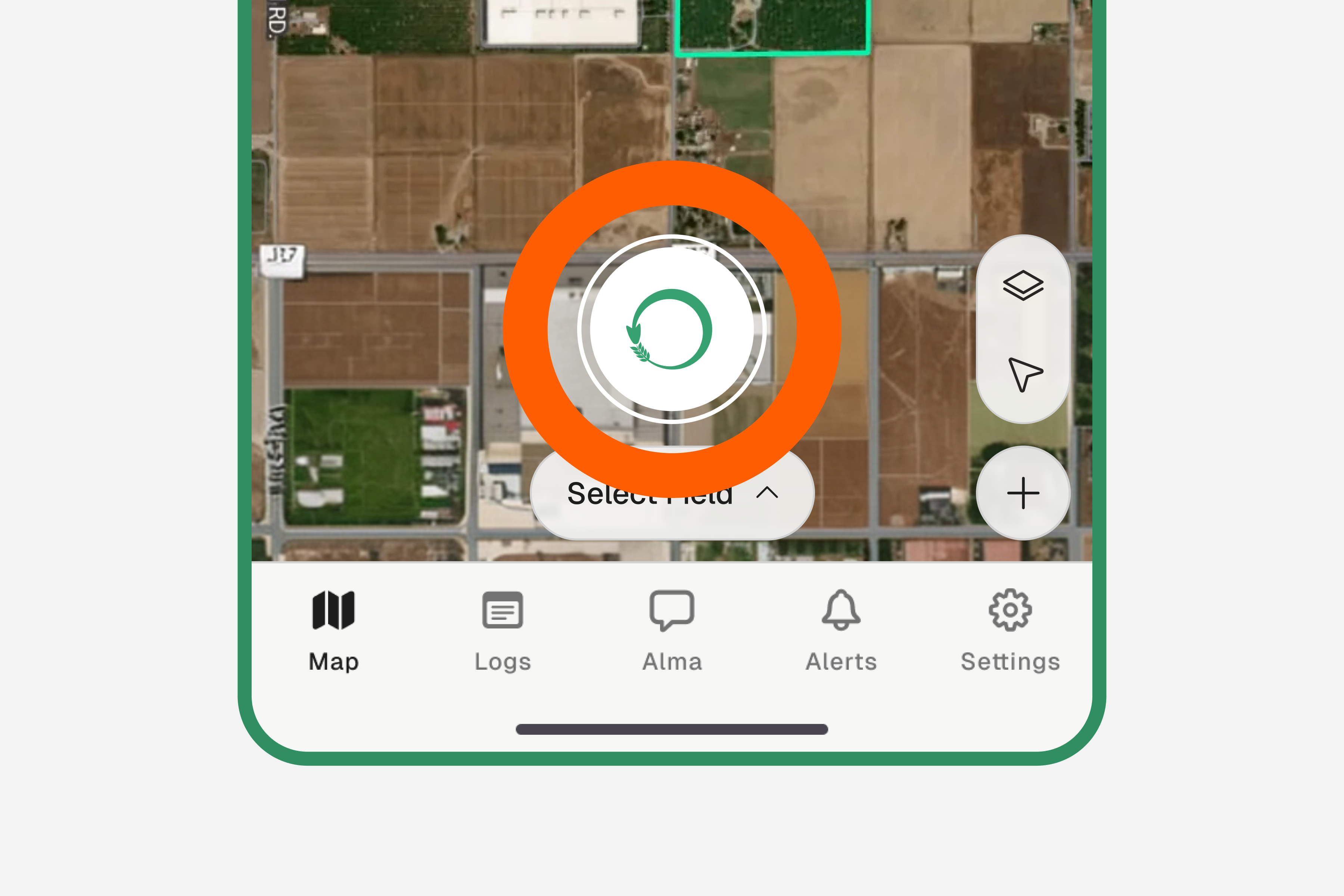
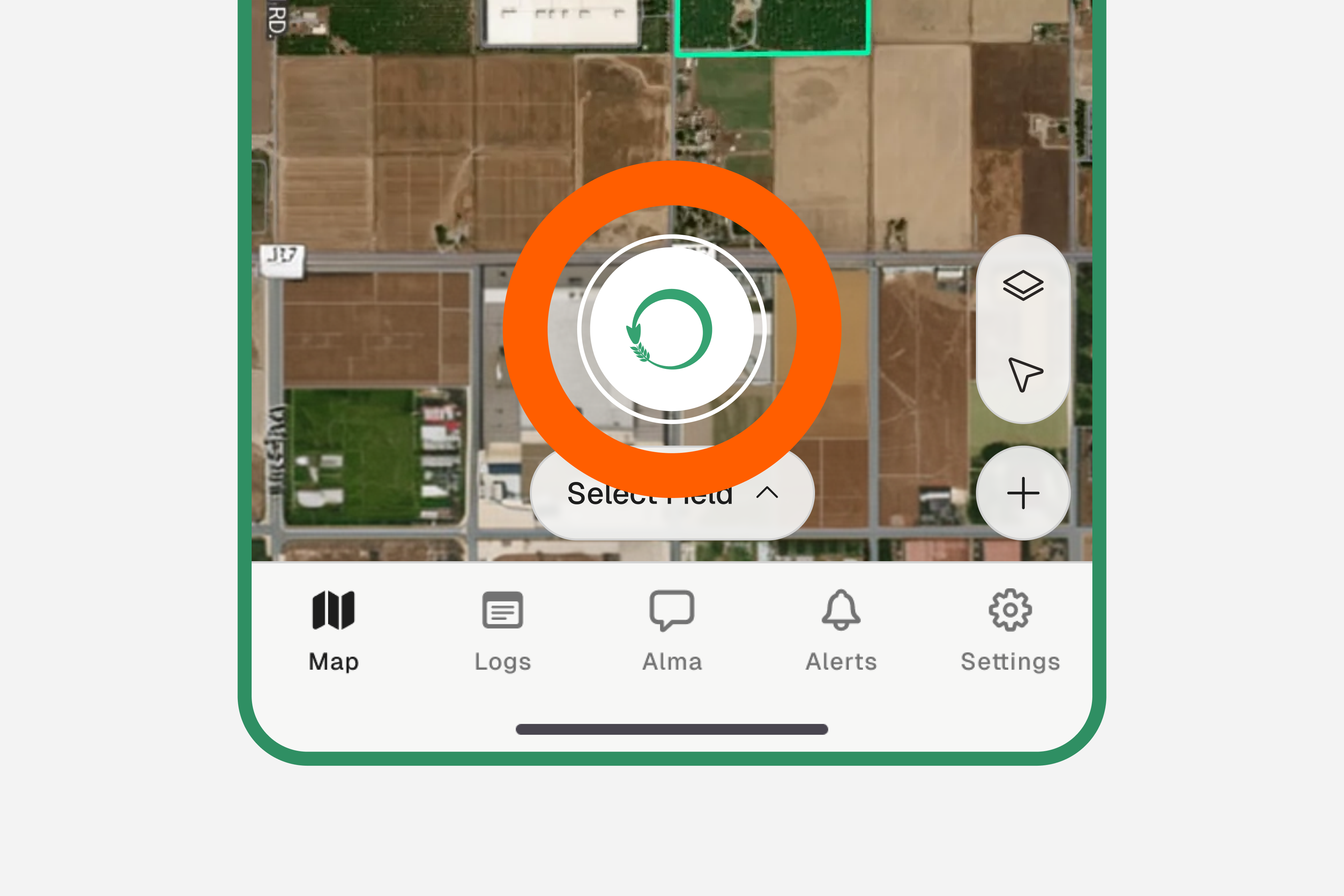
Tap the green microphone button
The mic button is at the bottom center of every screen. Tap it once — the recording screen will open.
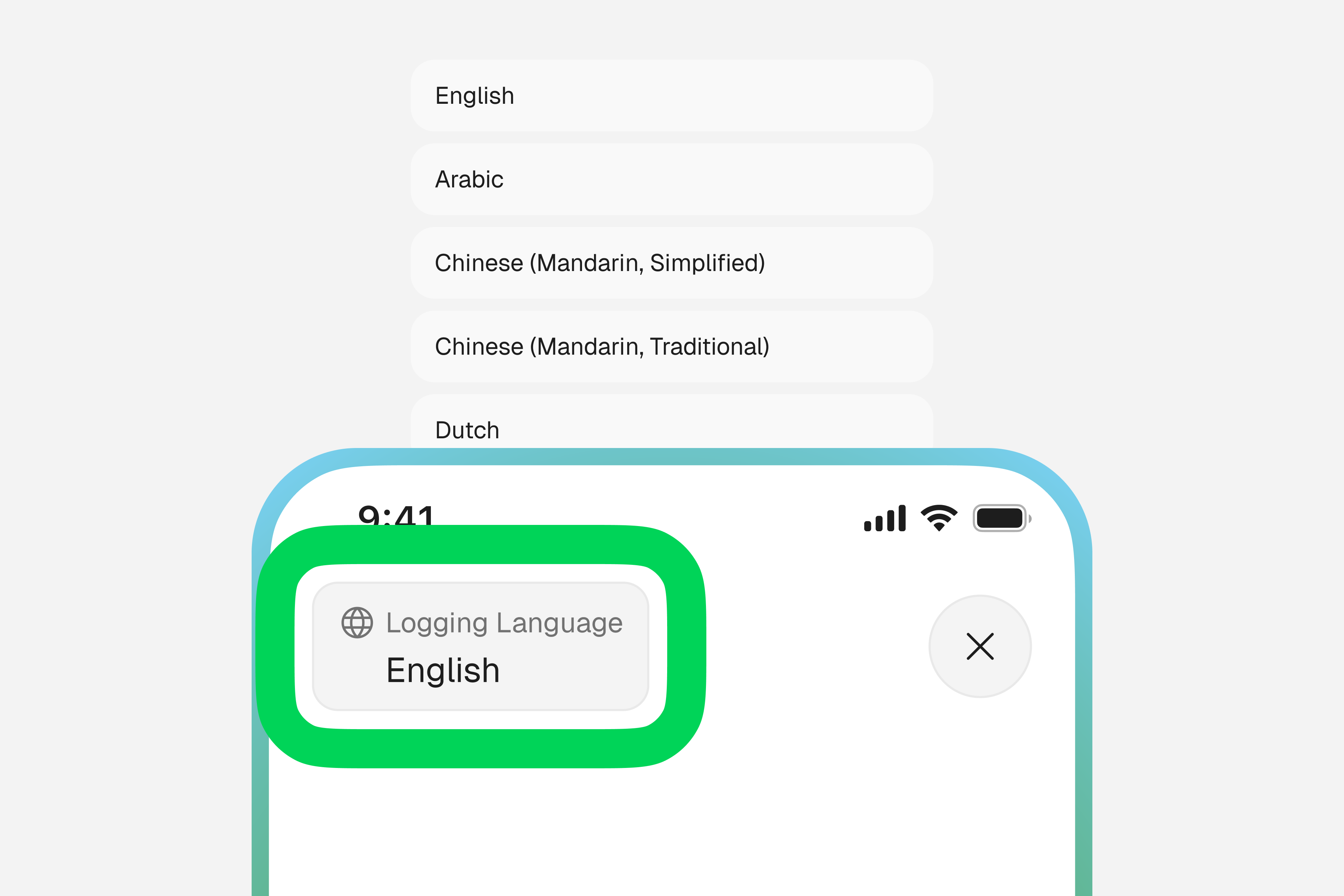
Set your logging language (optional)
In the recording screen, you can select the language you'll be speaking in. This helps Alma transcribe your voice more accurately. If you skip this, it will default to your app language.
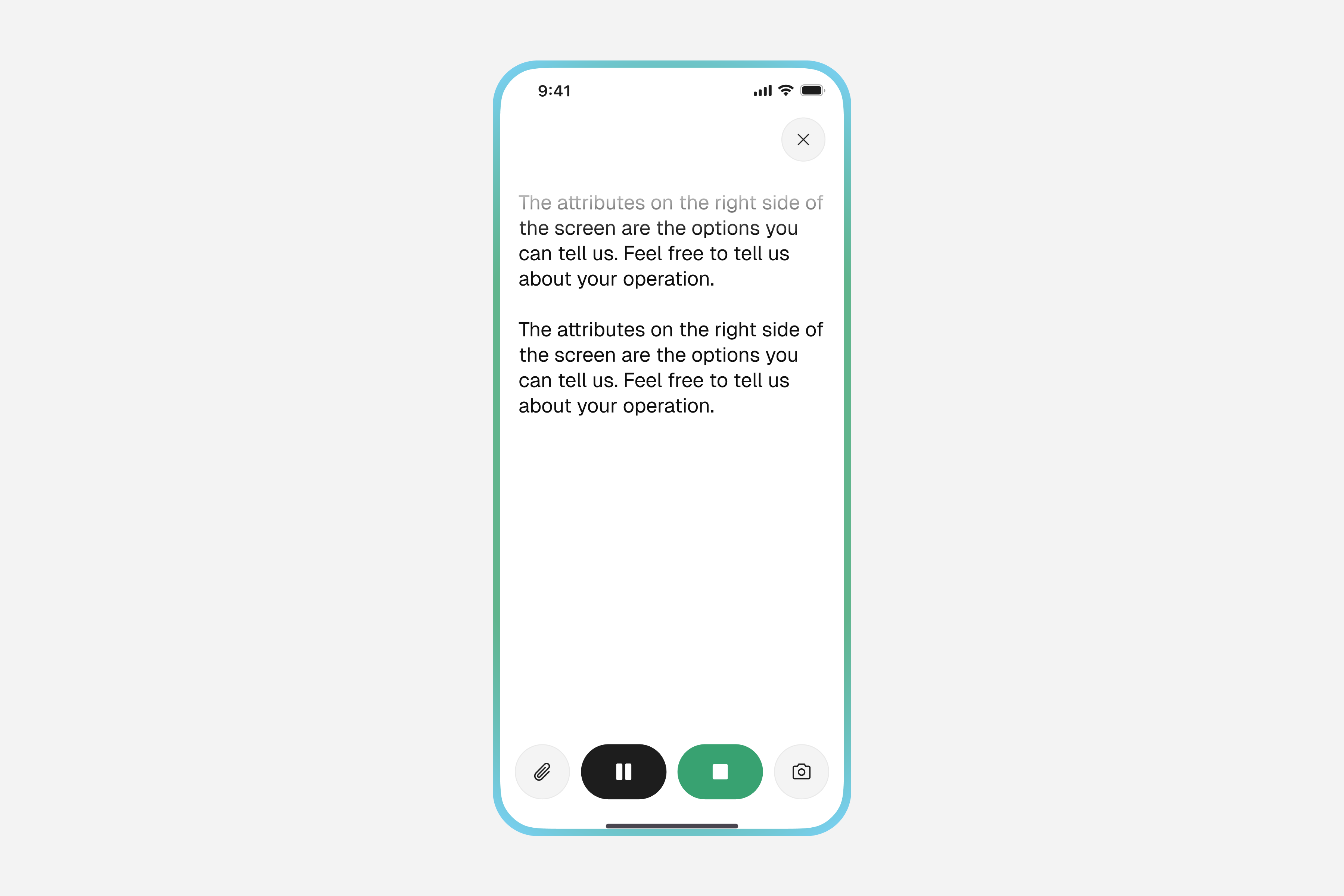
Speak your record
Speak naturally, just like you'd tell someone what you did on the farm.
Examples
- →“Applied herbicide to field 3 today”
- →“Fed 50 cattle in the north paddock”
- →“Completed irrigation on the tomato plots”
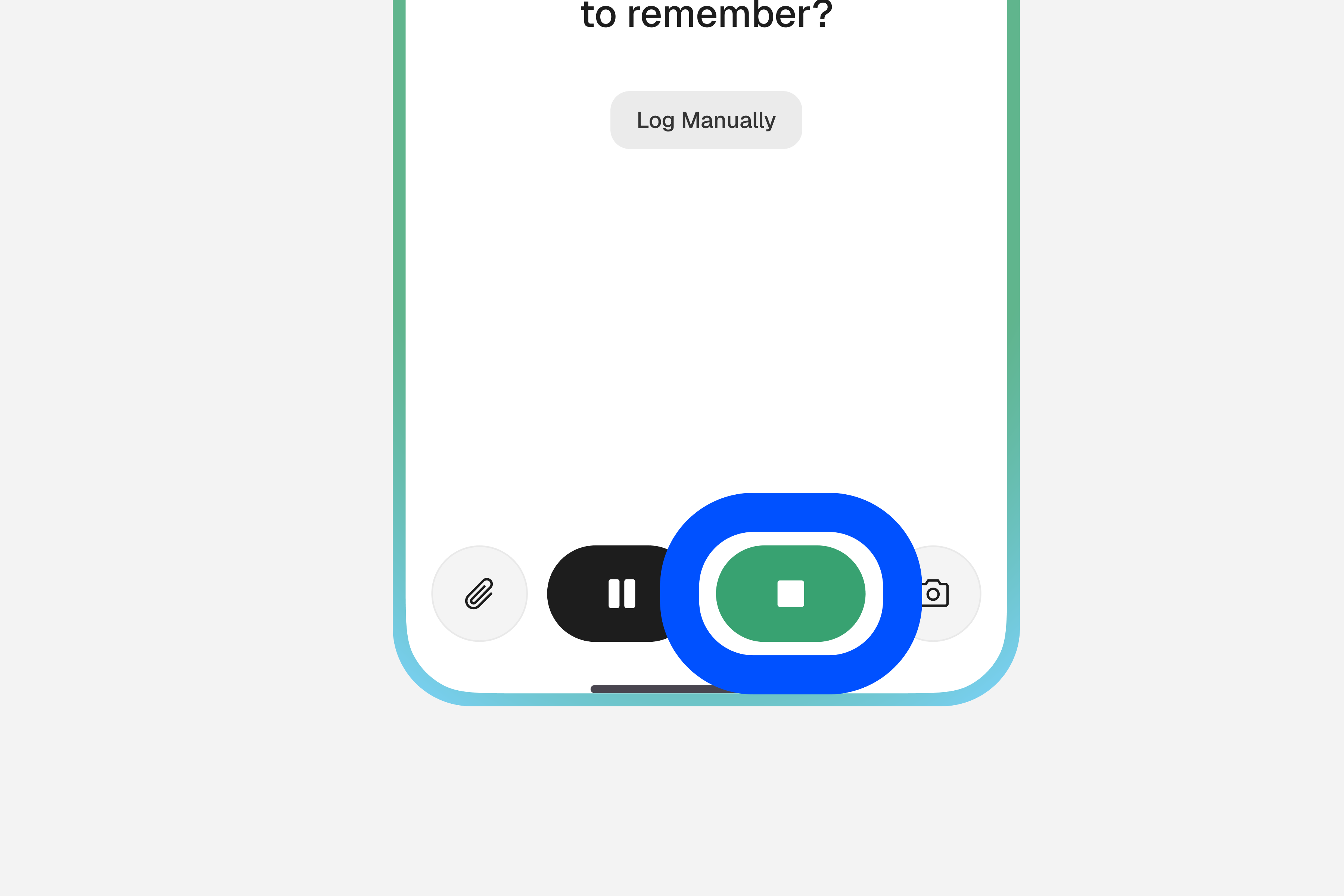
Tap the green stop button to finish
When you're done speaking, tap the green stop button in the center of the screen. Alma will process your speech and turn it into a structured record.
Review and adjust
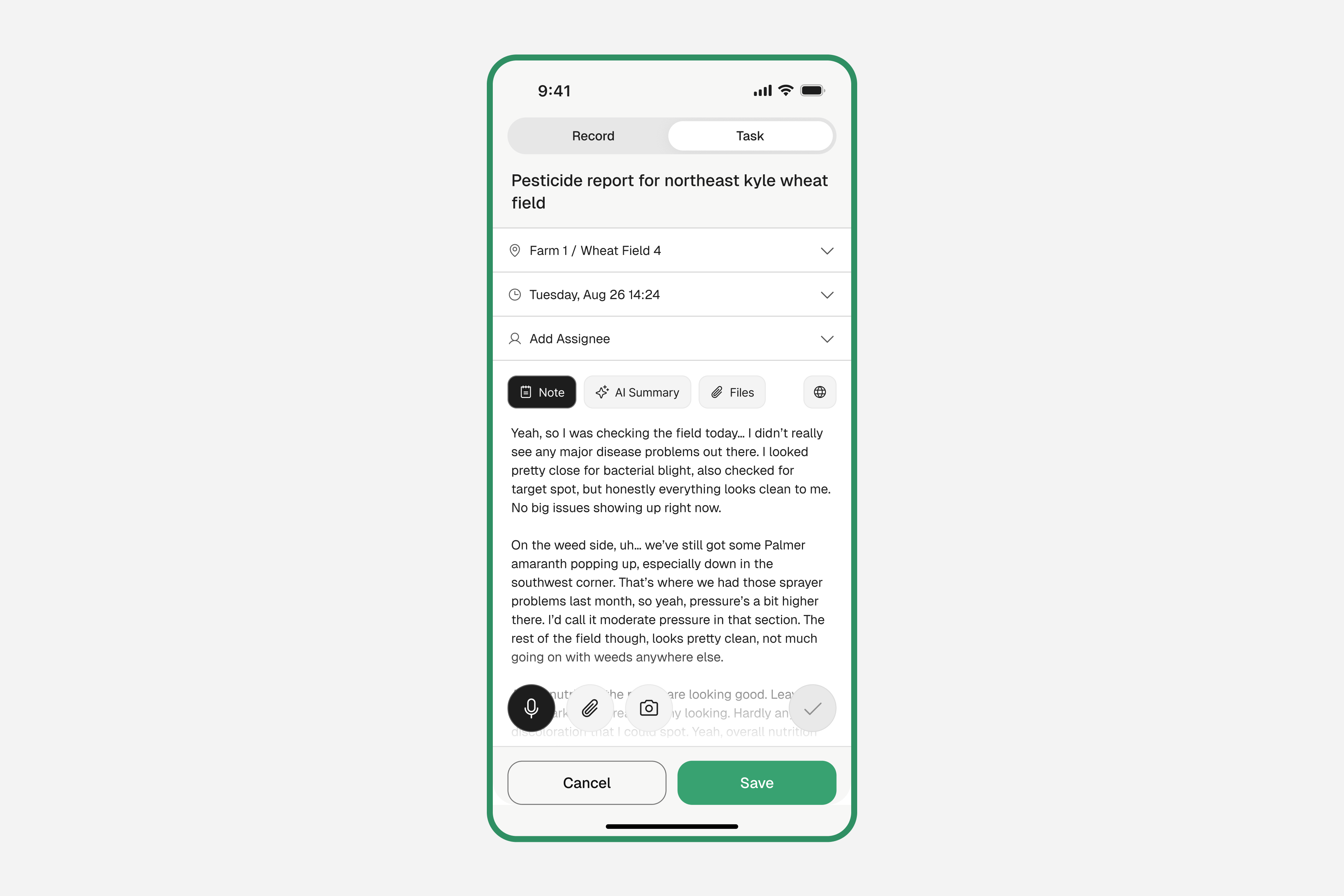
Alma shows you what it recorded. Check the date, location, and any other details. Edit anything that needs correcting.
Alma automatically detects whether you described something completed (Record) or planned (Task) based on your words. If the tab looks wrong, you can switch it manually.
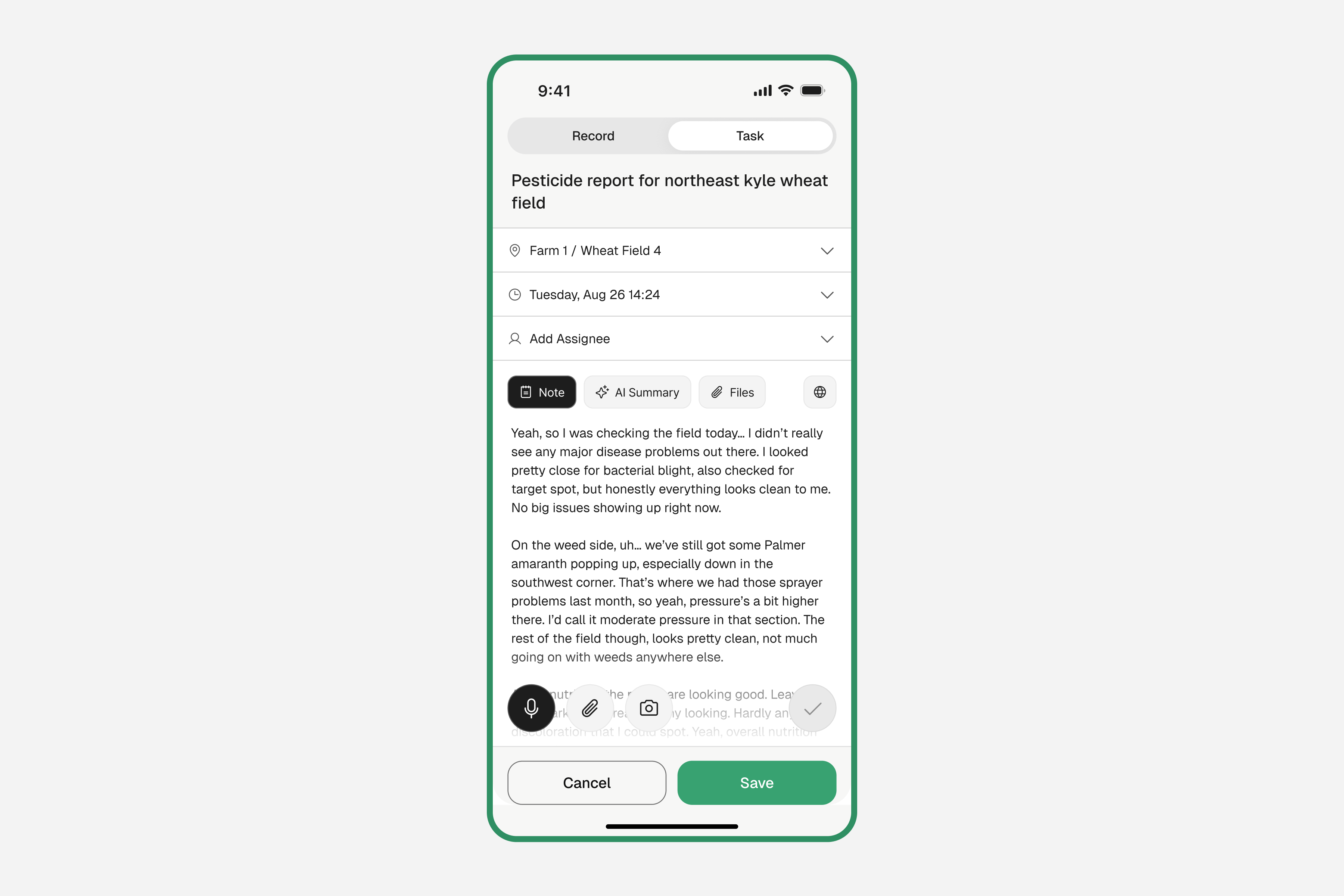
Tap "Save"
That's it! Your record is saved and linked to your farm history.
Alma learns from context — if you're viewing a specific field, it will automatically link the record to that field.
Editing a Record
You can modify any record after saving it.
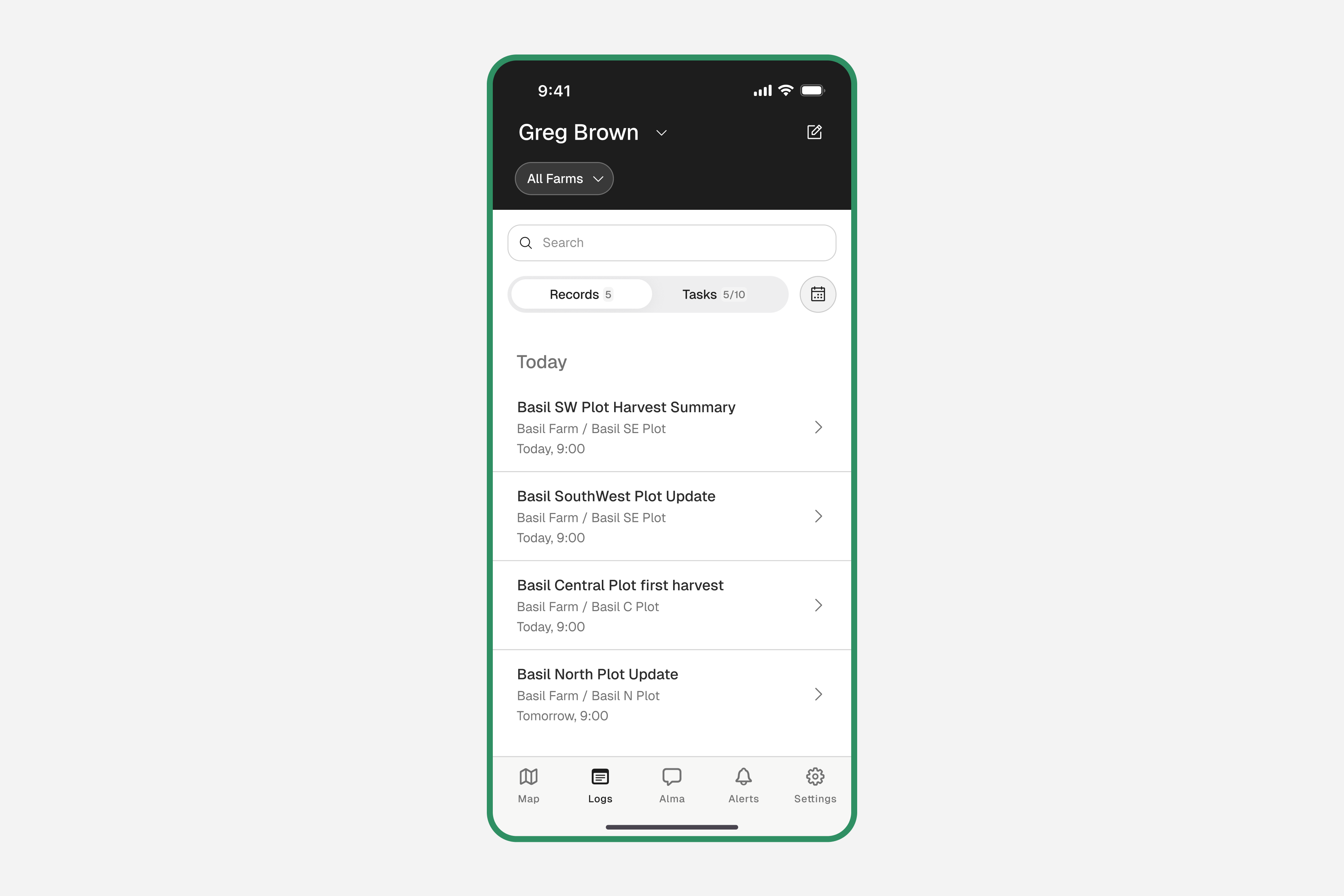
Find and open the record
Go to the Records tab and scroll to find the entry, or use the search bar. Tap the record to open its full detail view.
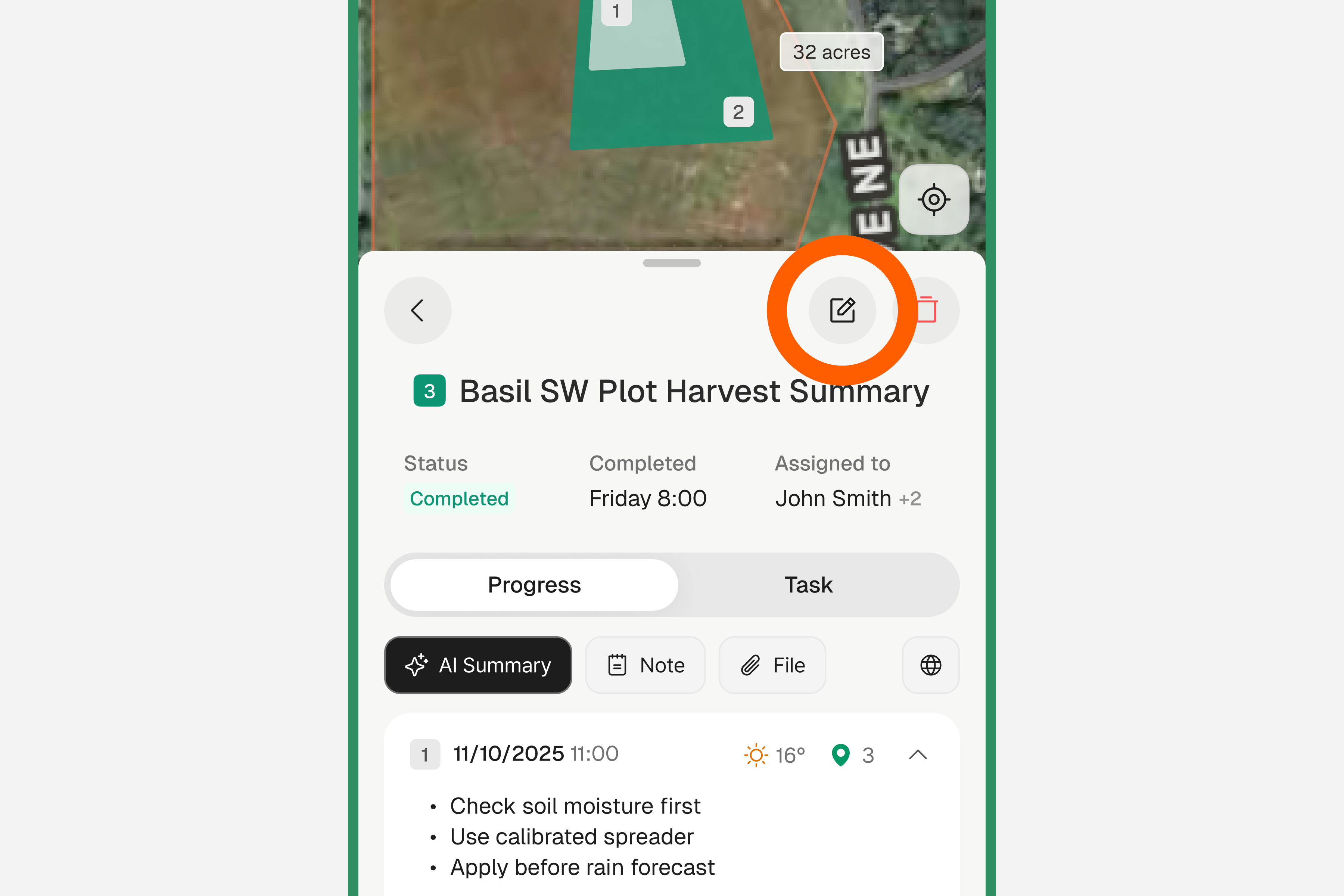
Tap the edit button
In the record detail view, tap the edit button to enter edit mode.
Edit any field
Tap on any field you want to change — date, location, description, attached files, or assignee.
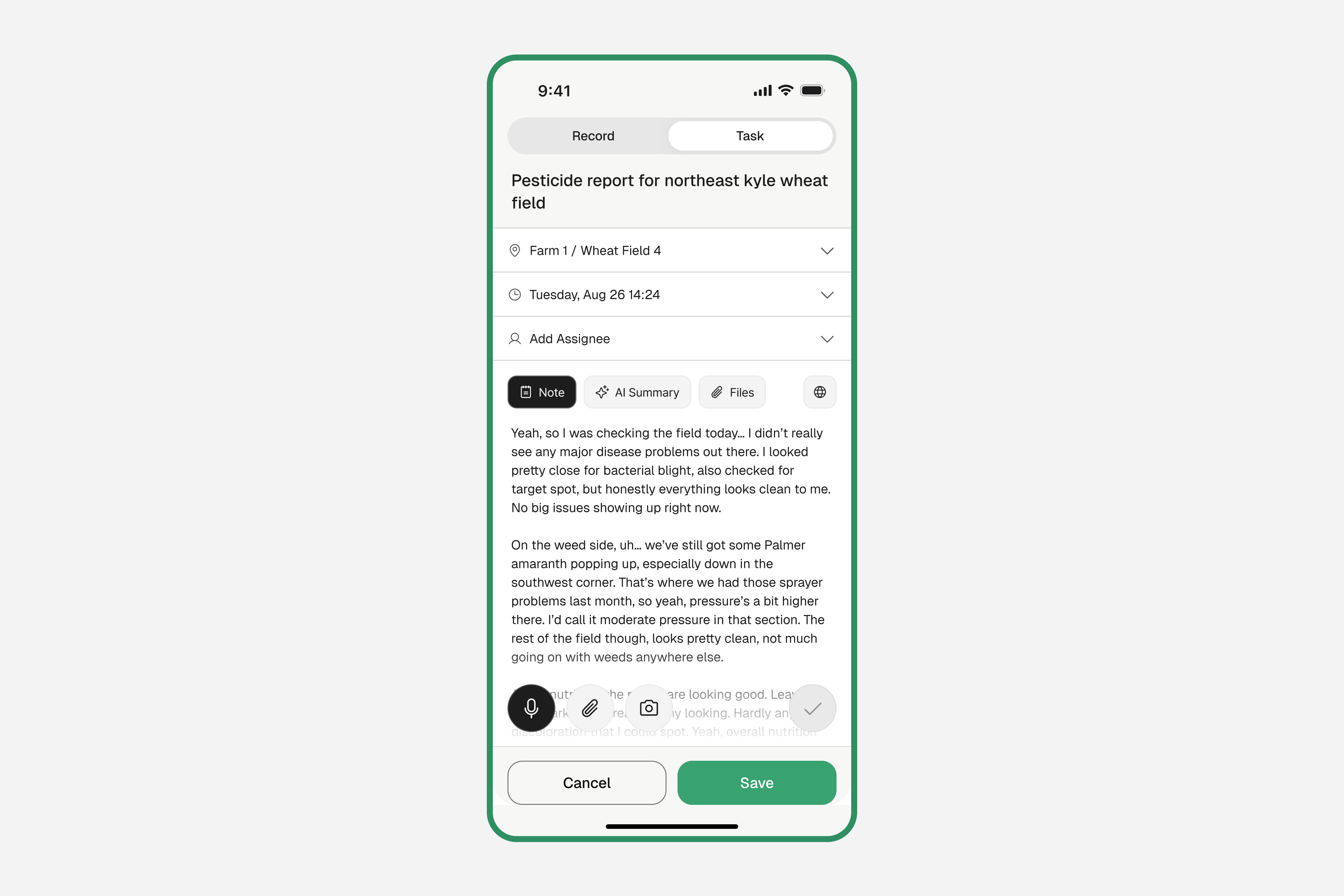
Record / Task tab
Switch between a record and a task.
Location
Which farm or field this record is from.
Date & Time
When this record took place.
Assignee
Team member responsible (for tasks).
AI Summary
Alma's generated summary of this record.
Attachments
Photos or documents related to this record.
Save your changes
Tap "Save" to confirm your edits.
Translation & Language Settings
You can set the logging language before you record, or translate a completed record at any time after saving.
During Logging
When you open the recording screen, you can select the language you'll be speaking in. This is the logging language — it tells Alma which language to transcribe, so your words are captured accurately.
Tap the mic button to open the recording screen
The recording screen appears as soon as you tap the mic button.
Tap the language selector
Find the language option on the recording screen and tap it to choose the language you'll be speaking in.
Proceed with your recording
Continue speaking as usual. Alma will transcribe your voice using the selected language.
After Saving
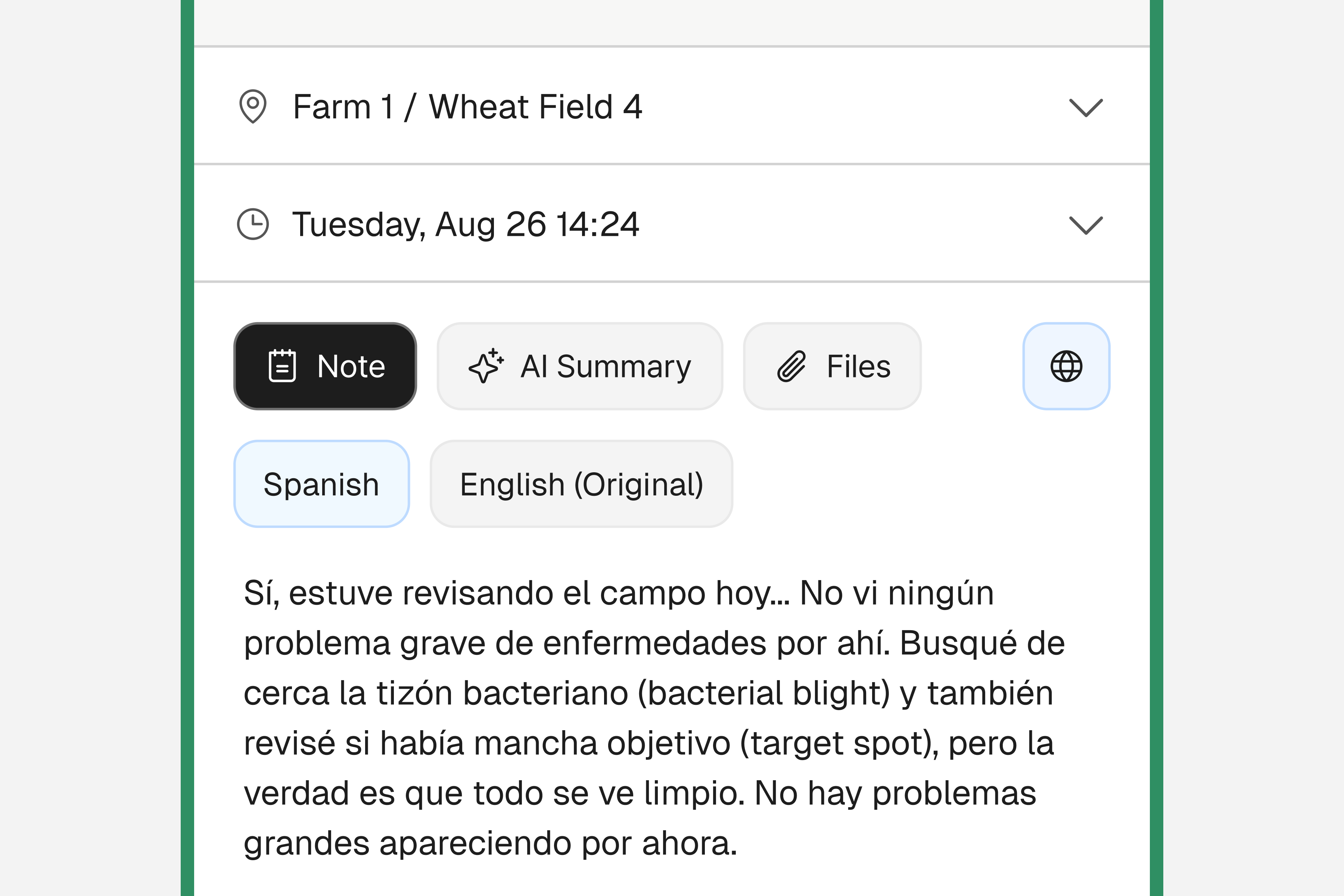
You can also translate any saved record into a different language. This is separate from the logging language — it lets teammates who speak other languages read the same record.
Open a saved record
Find and open any record from the Records tab.
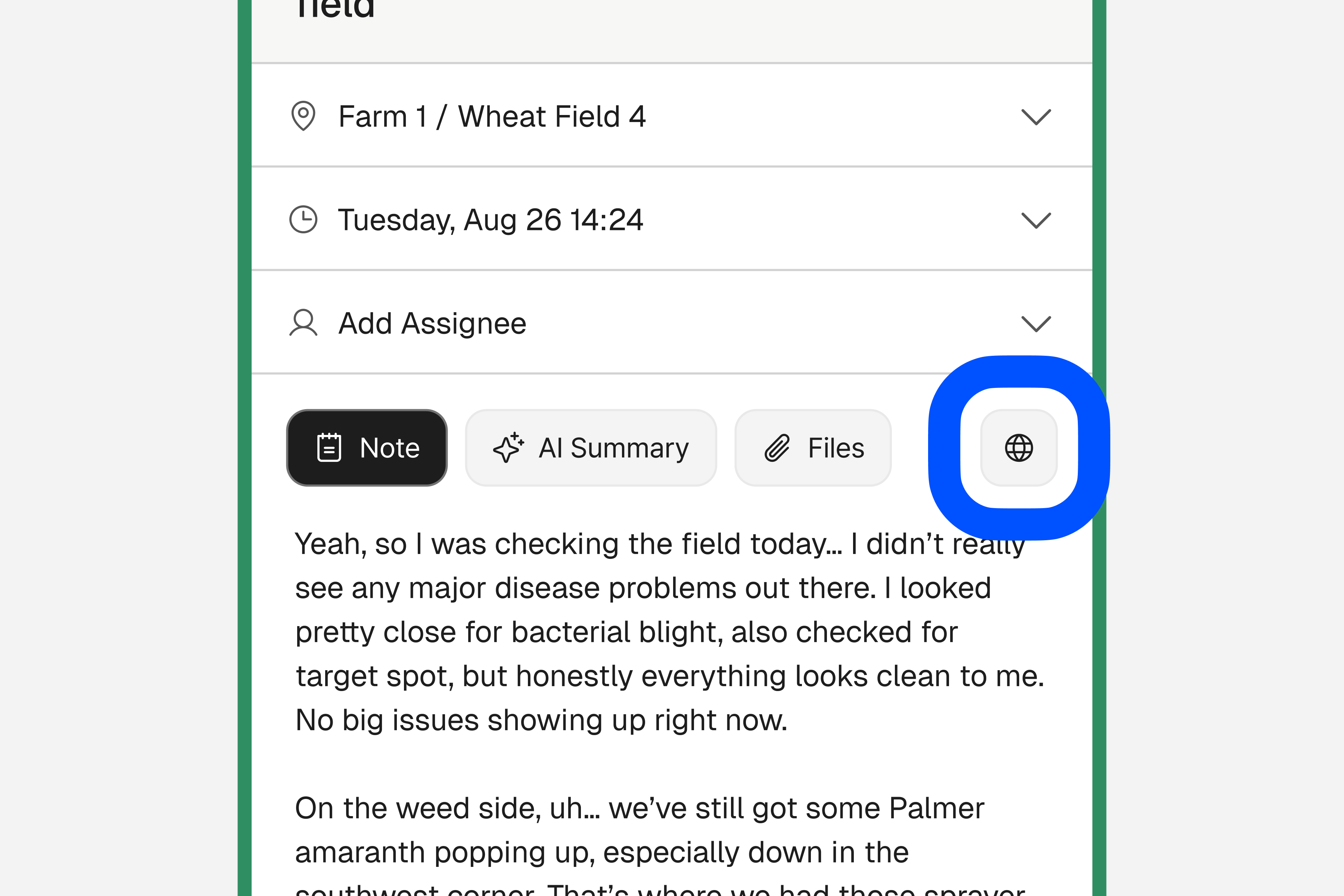
Tap the globe (🌐) icon
The translate icon is in the record toolbar.
Select a target language
Choose the language you want to translate the record into (e.g. Spanish, Portuguese, English).
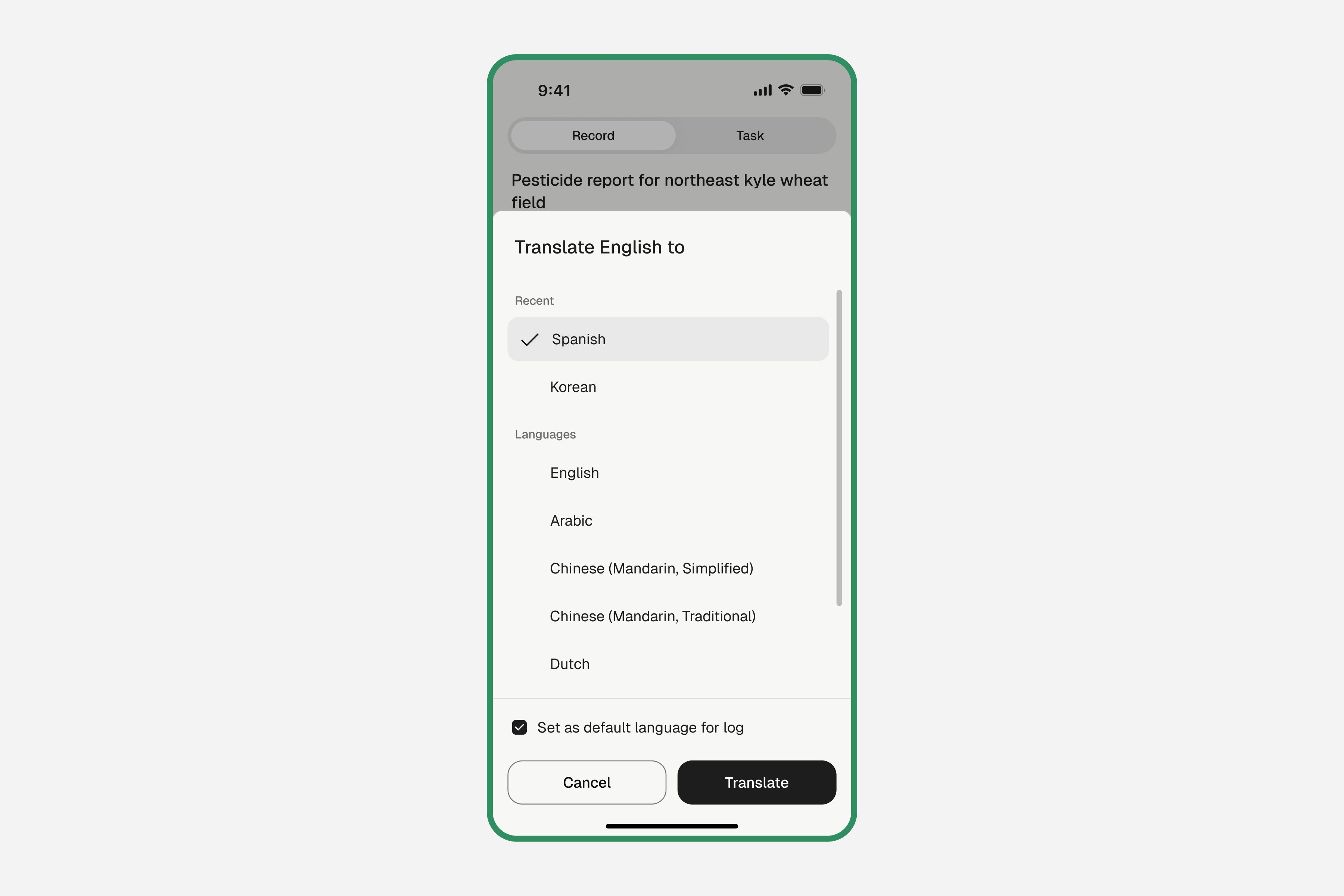
Tap "Translate" and save
The translation is added to the record. Both the original and translated versions are saved.
Useful for multilingual teams — a supervisor logs in English while workers can read the same record in Spanish.
Troubleshooting
Common issues and how to fix them.
Microphone permission stuck on Android (Chrome)
If you tapped "Continue" on the microphone permission prompt but nothing happened — or the prompt keeps reappearing — Chrome may be blocking the permission at the browser level. Follow these steps to fix it:
Step 1 — Check Android system permission
- Open your phone's Settings app.
- Go to Apps → Chrome → Permissions → Microphone.
- Set it to Allow.
Step 2 — Check Chrome site permission
- Open the Chrome app and tap the three-dot menu (⋮) in the top right.
- Go to Settings → Site settings → Microphone.
- Find site.numanac.com in the list and tap it.
- Change the microphone permission from Block to Allow.
- Return to the app and refresh the page.
If you don't see site.numanac.com listed, make sure you've visited the site first, then check again. Alternatively, use the Log Manually option to type your record instead.