

Team & Collaboration
Invite teammates, assign roles, and control access to each farm workspace.
Team Roles
Each team member gets a role that determines what they can access.
| Role | What they can do |
|---|---|
| Owner | All features, billing, and account management |
| Manager | Create and edit farms, manage team members |
| Recordkeeper | Create records and tasks, view all permissioned data |
| Viewer | View records and data only (no editing) |
| Client | Limited access to their own farm data only |
Step 1: Add Team Seats
Before you can invite someone, you need to have an available seat for their role.
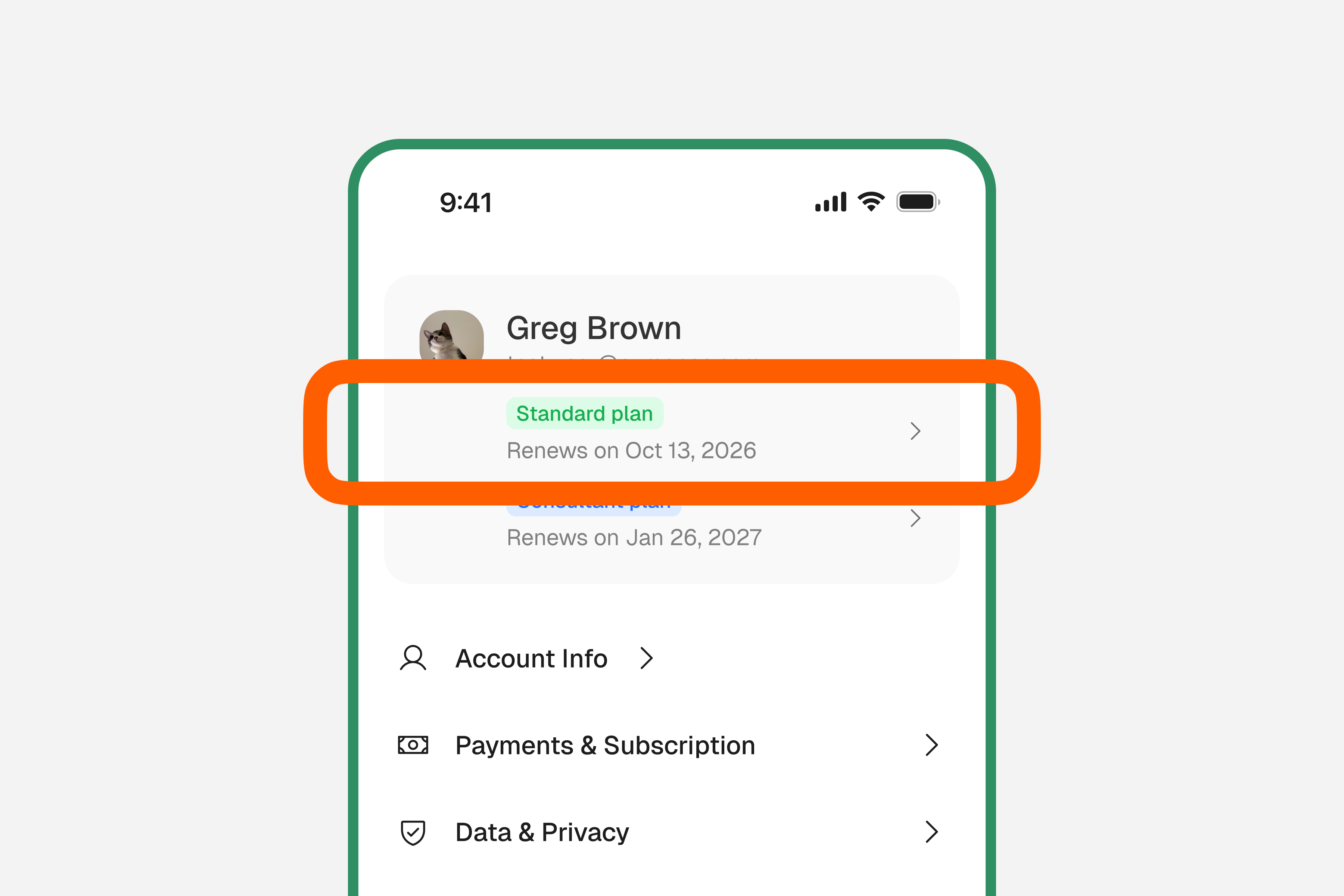
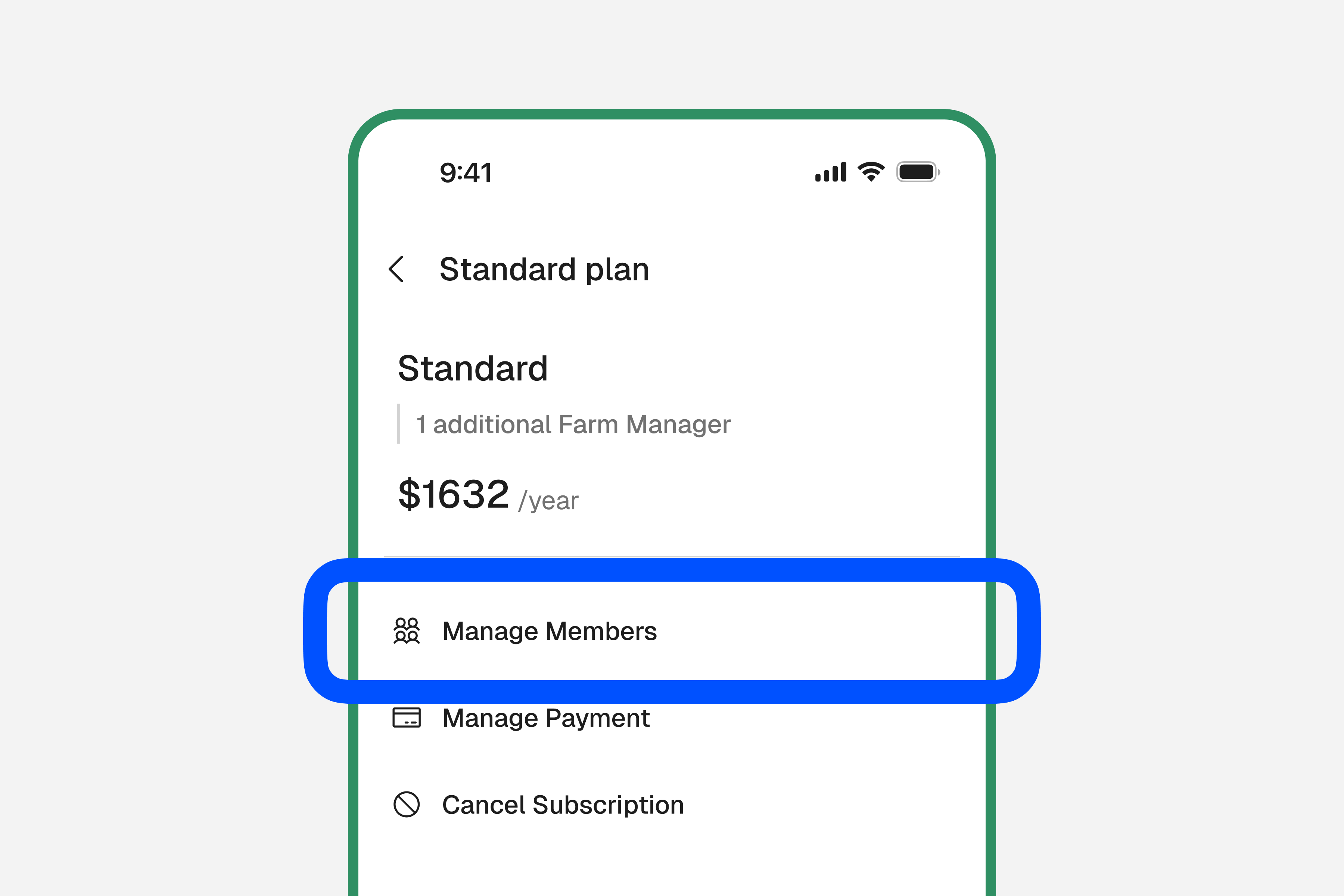
Go to Settings and tap your account card
Tap "Settings" in the bottom navigation bar, then tap your plan or account card at the top of the screen.
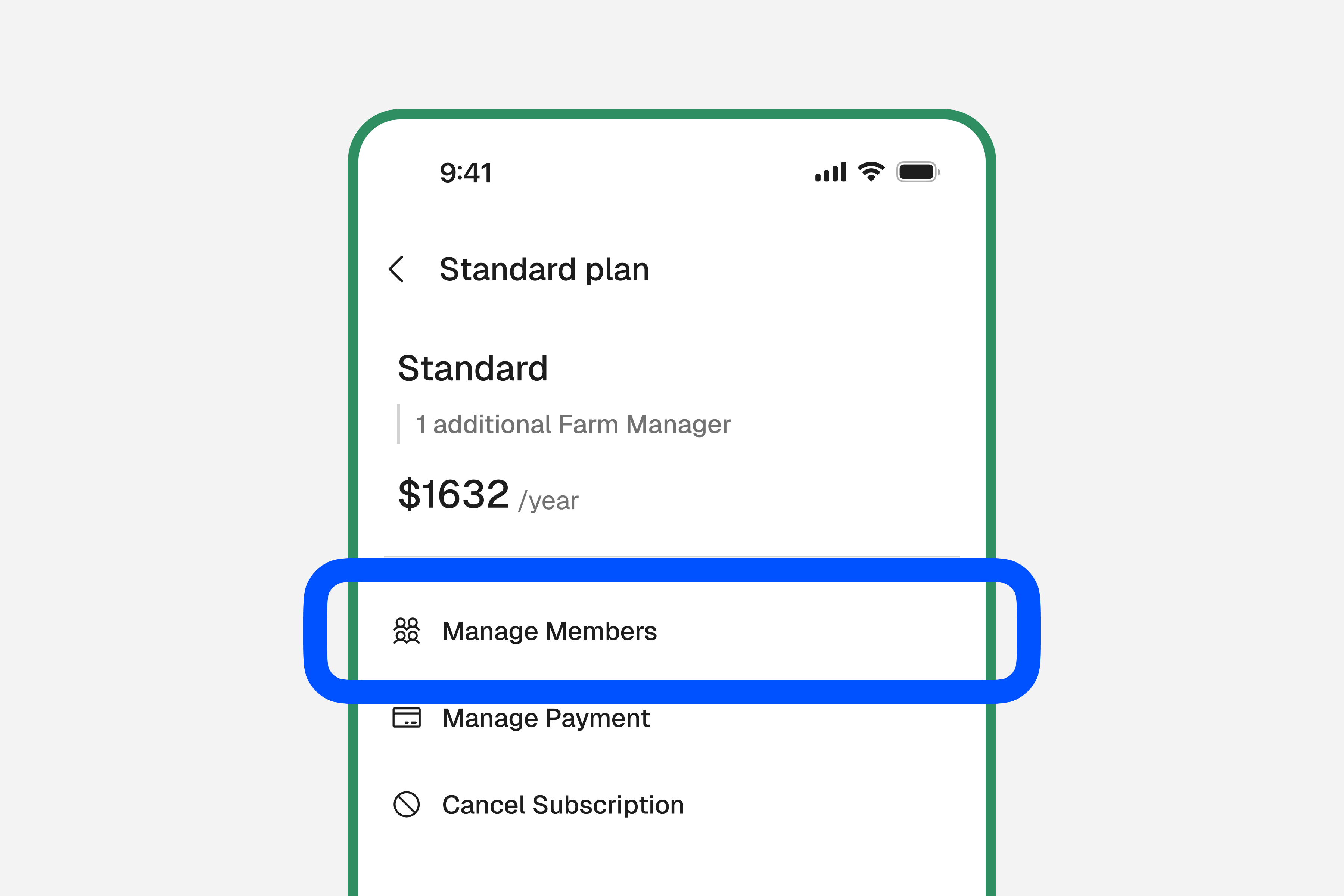
Tap "Manage Members"
This opens the member management screen where you can see your current team and seat usage.
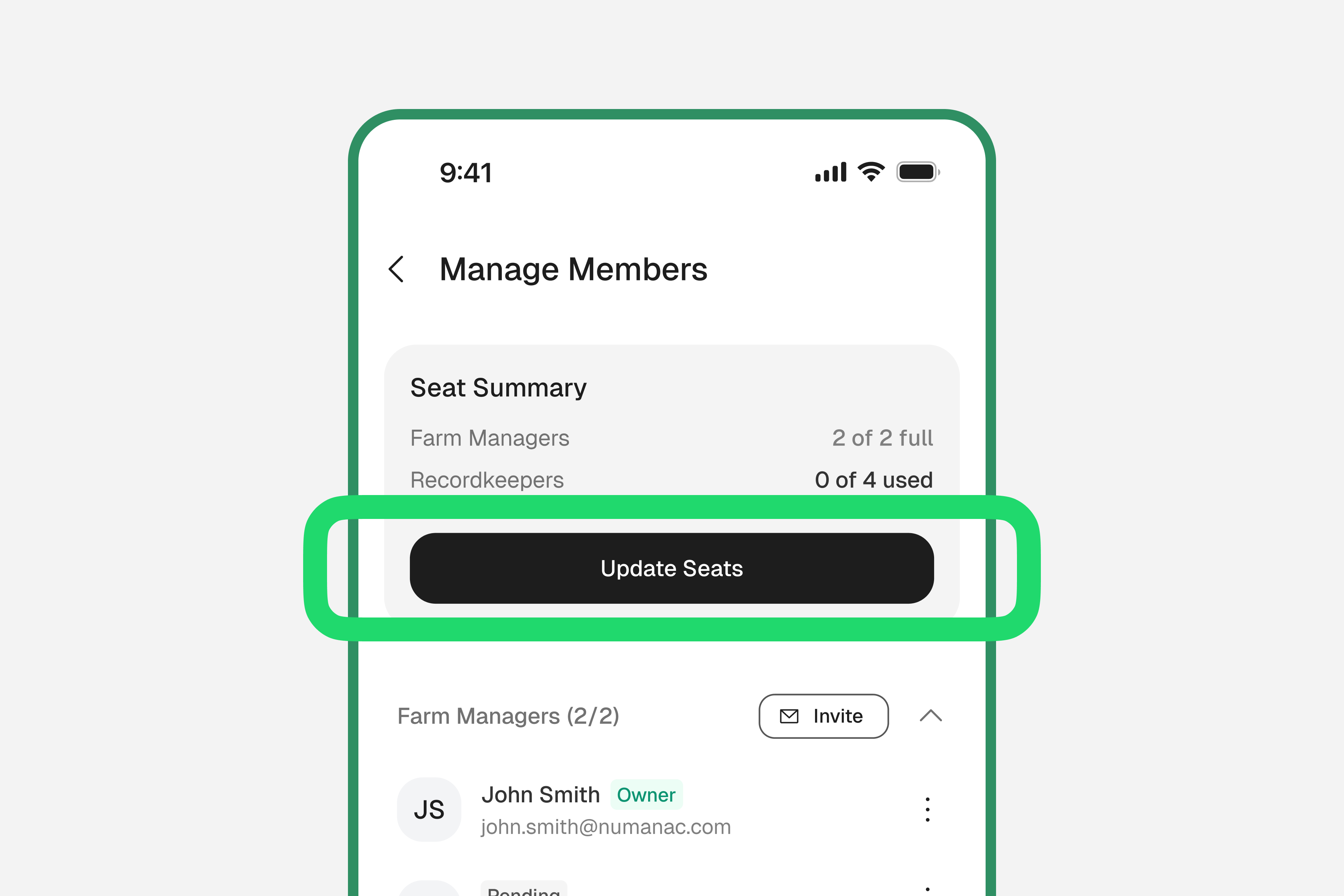
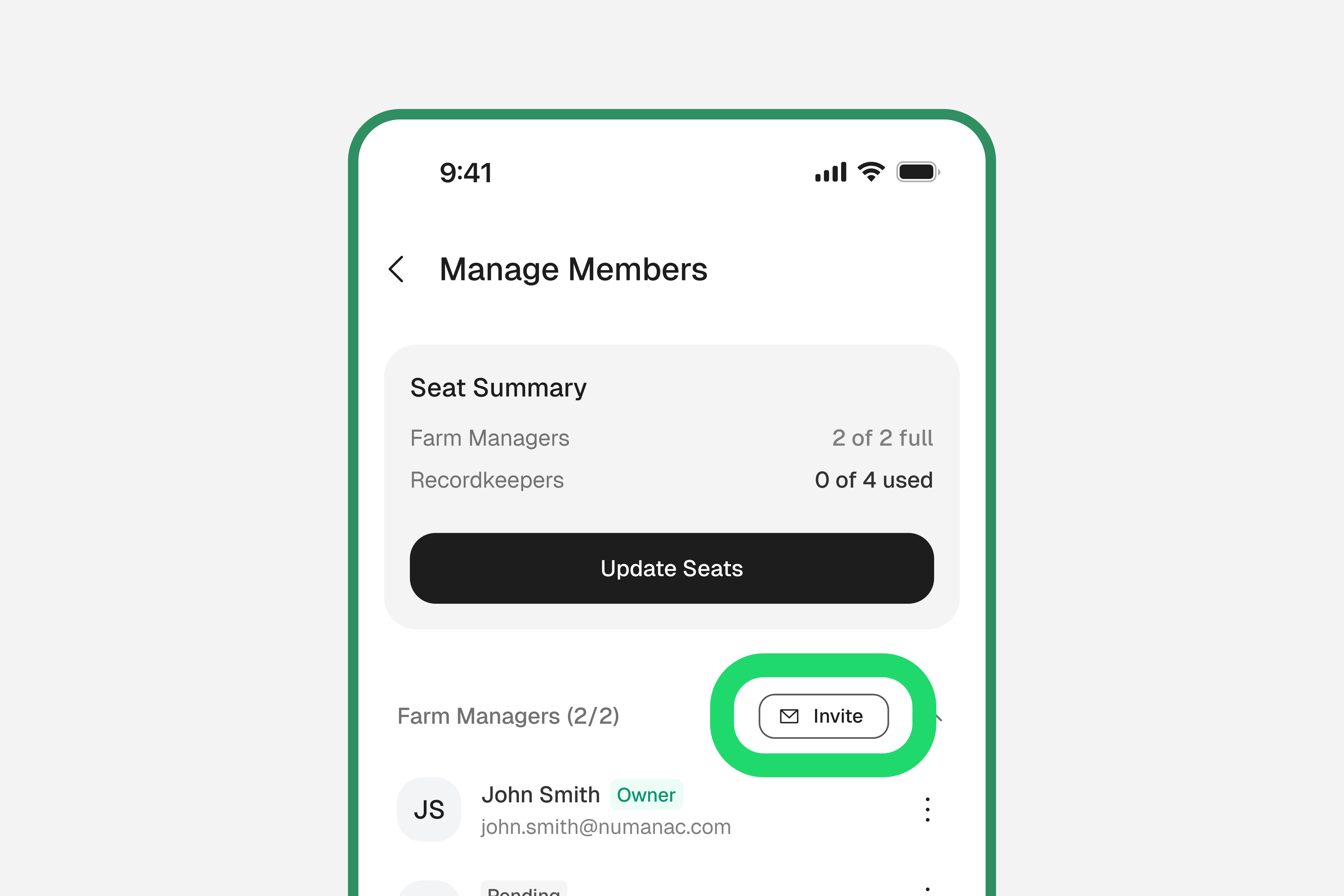
Review your seat summary and tap "Update Seats"
Check how many seats you have by role (Manager, Recordkeeper, Viewer, etc.) and how many are already filled. If you need more, tap "Update Seats" to open the seat management screen.
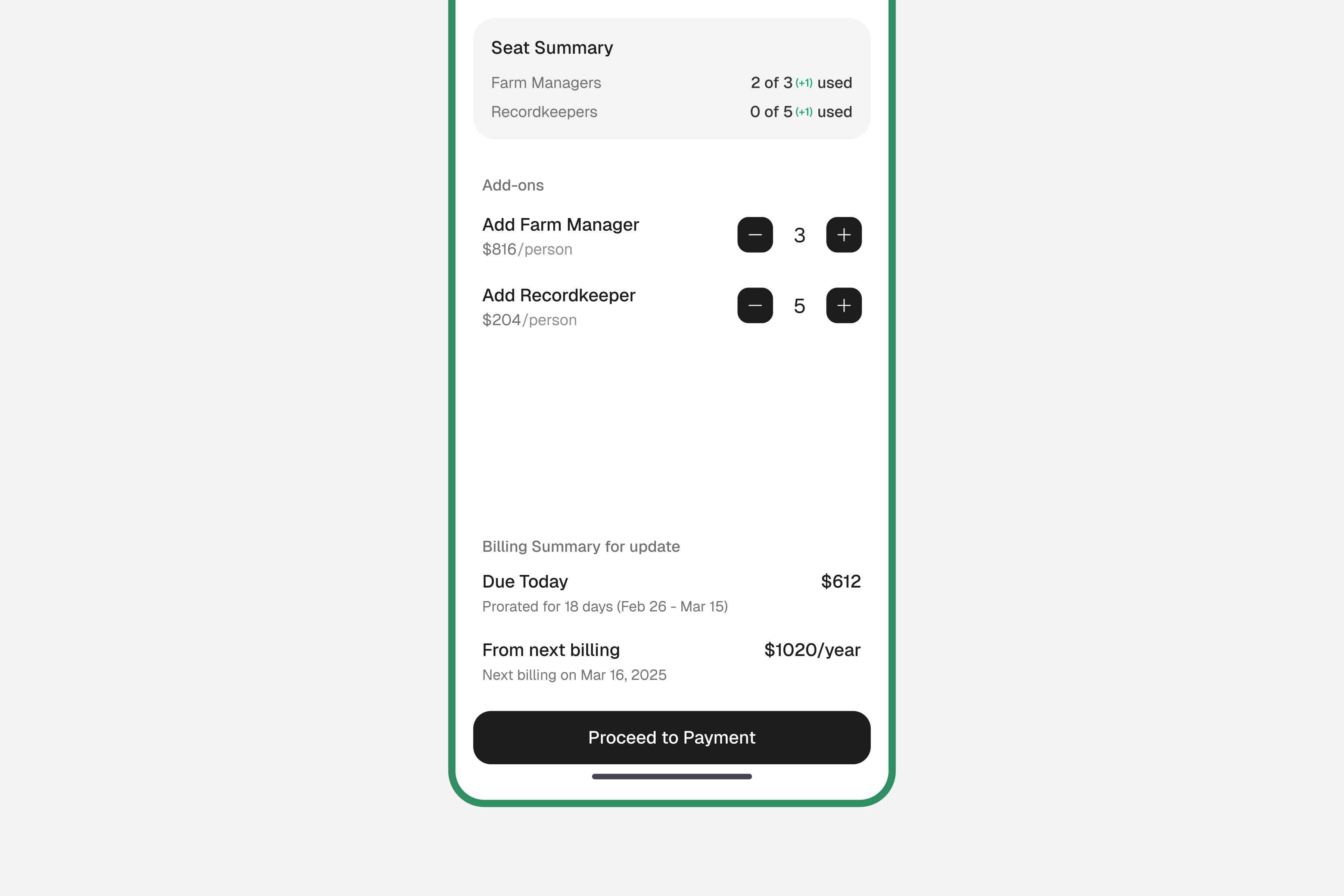
Select how many seats to add
Choose the number of seats for each role type.
Tap "Confirm Seat Update"
Confirm the change. You'll be taken to the payment screen to complete the purchase. Seats are billed per month and become available immediately after payment.
Step 2: Invite Team Members
Send invitations to your team members via email.
Go to Settings → account card → Manage Members
Tap "Settings" in the bottom navigation bar, tap your account card, then tap "Manage Members" — same as above.
Tap "Invite"
Tap the Invite button to open the invitation form. If all seats for a role are full, you'll need to remove an existing member or purchase additional seats first.
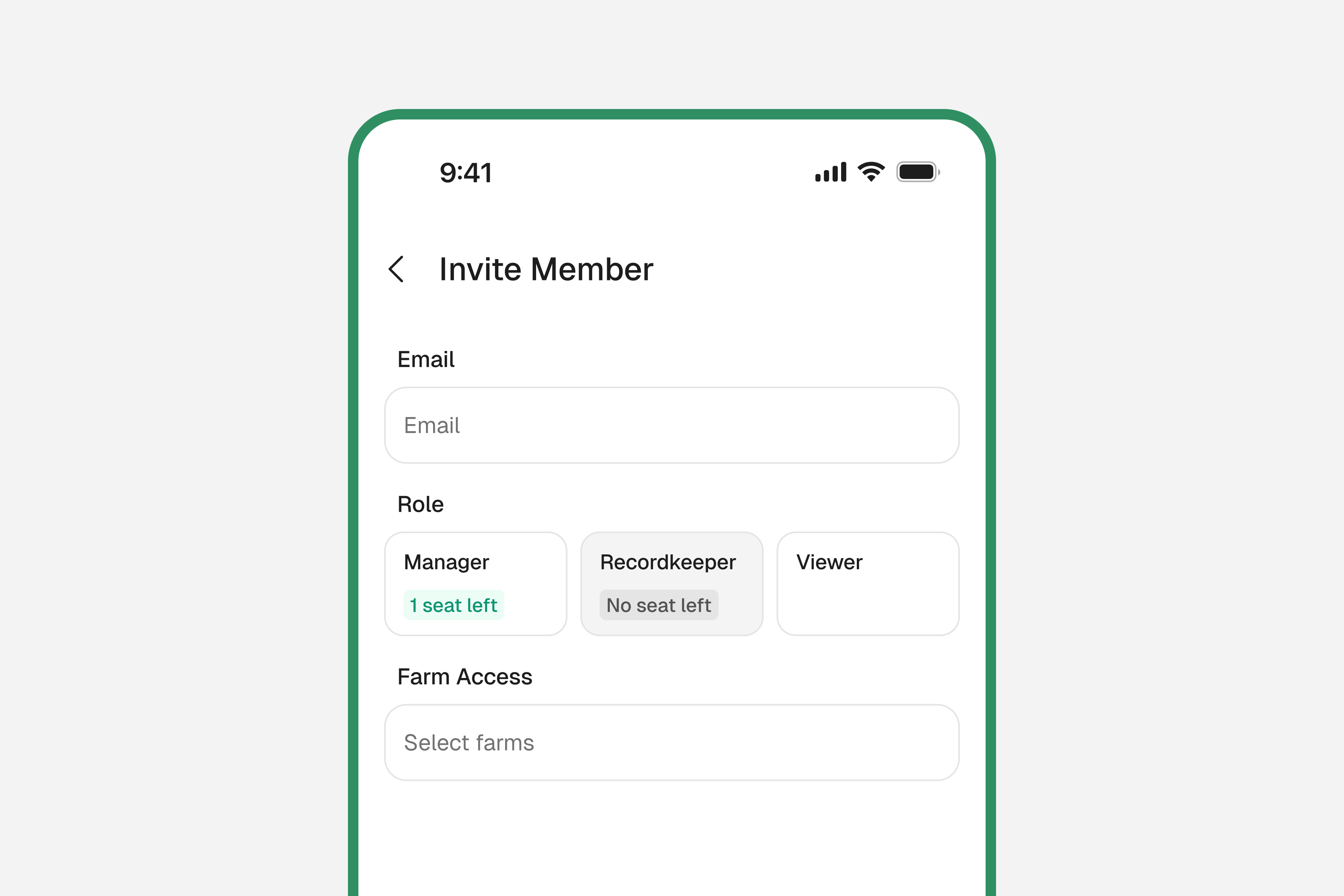
Enter email, role, and farm access
Type in the team member's email address, choose their role (Manager, Recordkeeper, Viewer, or Client), and select which farm(s) they should have access to.
Tap "Send Invitation"
The team member will receive an email invitation to join. They need to accept it and create (or log into) their Numanac account.
If the invitation email doesn't arrive, ask the team member to check their spam or junk folder.