

Task Management
Plan future work, assign owners, and track progress from one place.
Records vs. Tasks — What's the Difference?
Something you already did. Logged in the past tense.
Example: "I sprayed herbicide on field 3 this morning."
Something you plan to do. Created in future tense.
Example: "Irrigate the north field tomorrow morning."
Alma automatically detects whether you're describing something completed (Record) or something planned (Task) based on your language.
Creating a Task
The easiest way is with voice — just say what needs to be done.
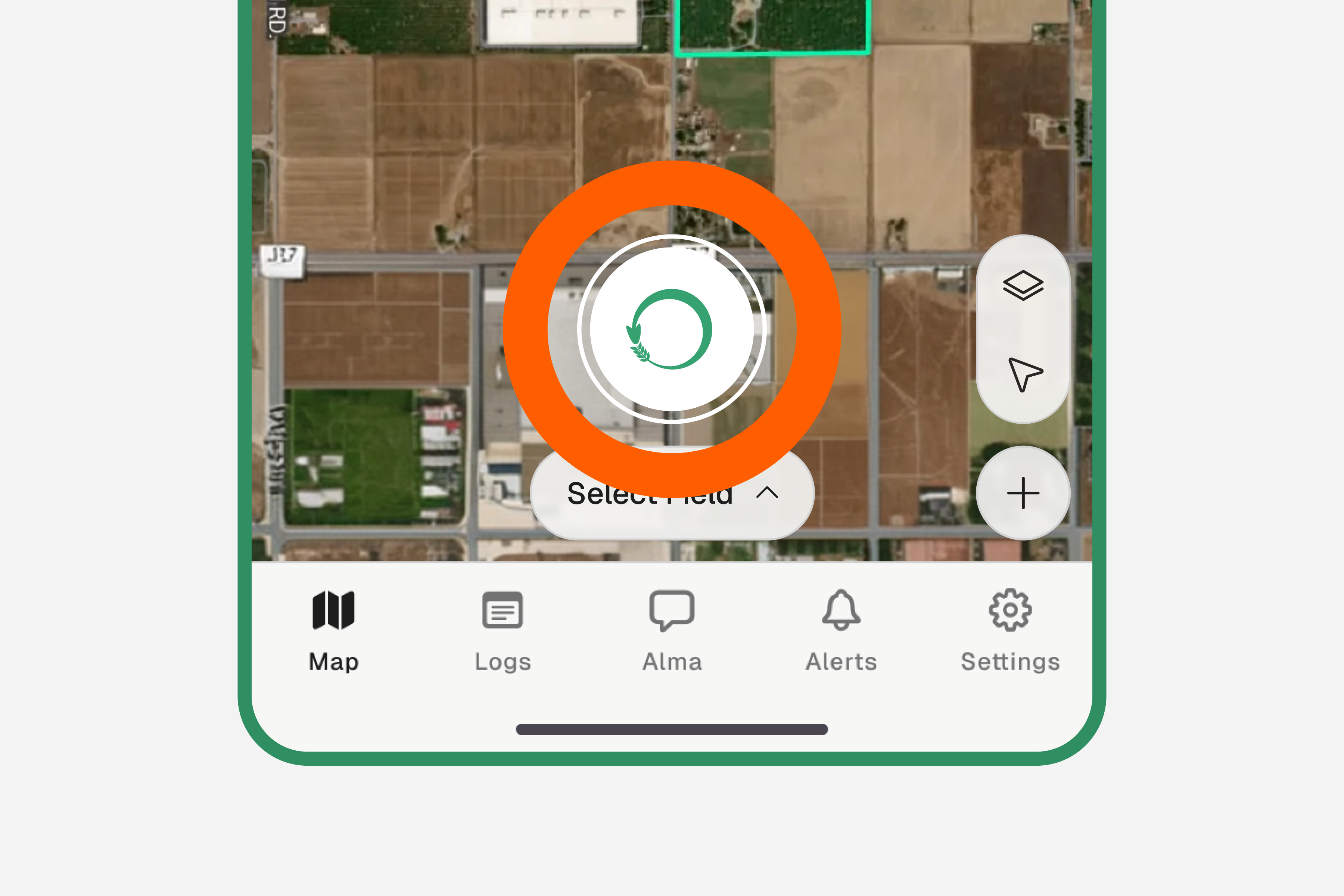
Tap the green microphone button
The mic button is at the bottom center of every screen. Tap it once — the recording screen will open.
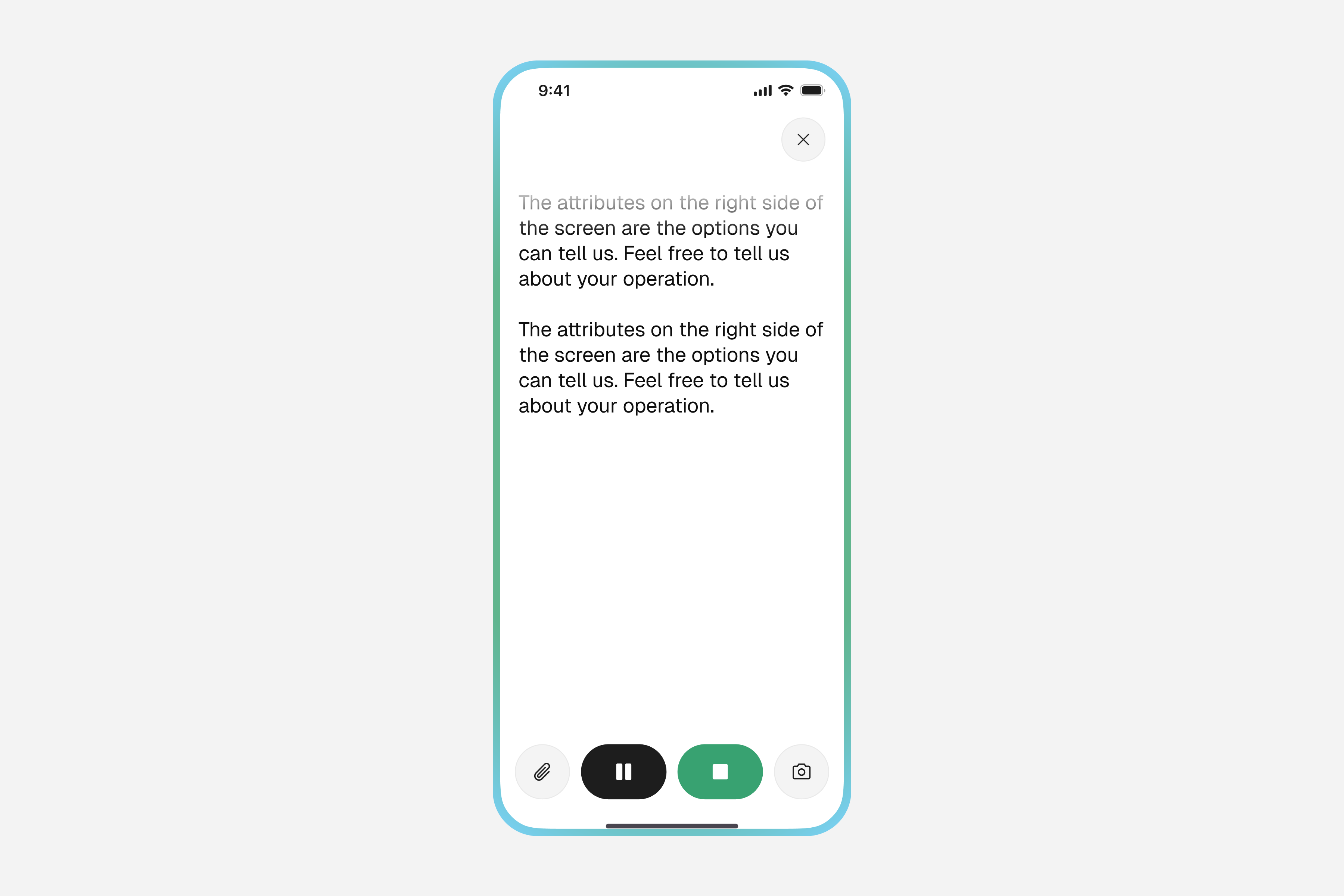
Speak your task in the future tense
Describe what needs to be done. Using future-tense language tells Alma this is a planned task, not something already completed.
Examples
- →“Irrigate the north field tomorrow morning”
- →“Fix the fence on the south paddock by Friday”
- →“Spray fungicide on the vineyard next Tuesday”
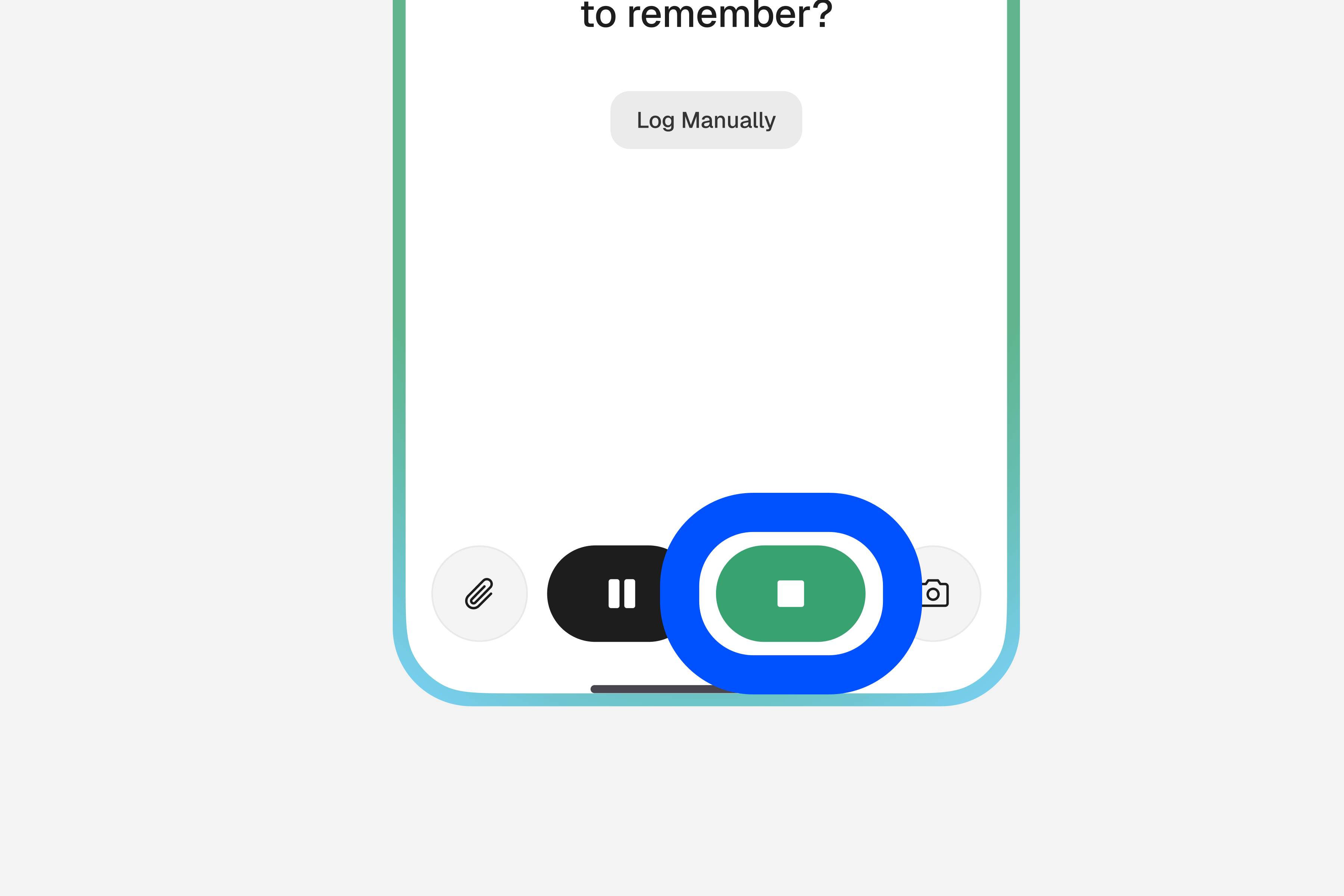
Tap the green stop button to finish
Alma will process your speech and classify it as a Task automatically.
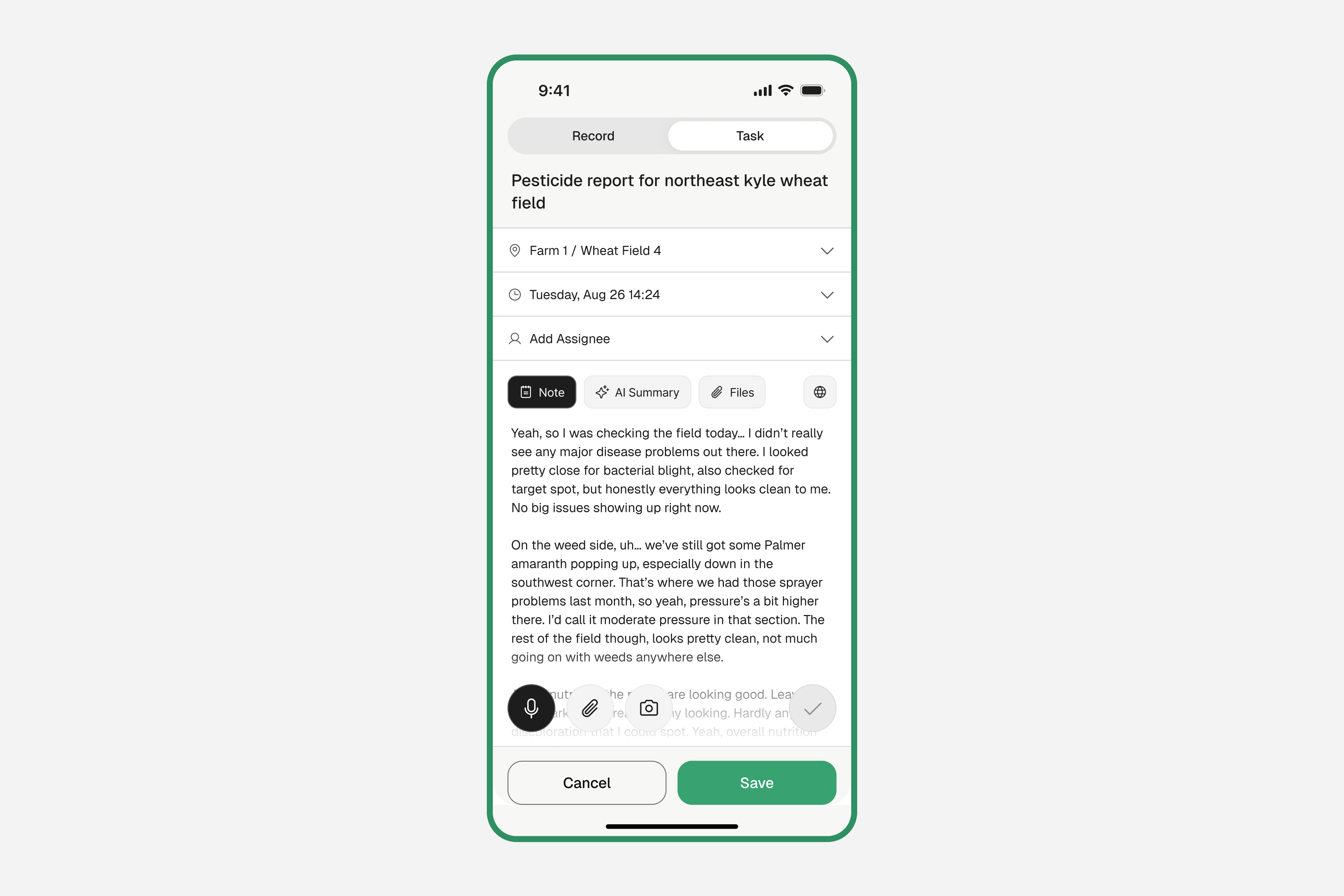
Review the task details
Check the due date Alma inferred from your speech (e.g. 'tomorrow' → tomorrow's date). Update the location and any other fields if needed.
Tap "Save"
The task is now in your task list, ready to be tracked and completed.
Tracking Task Progress
Keep your task list up to date as work gets done.
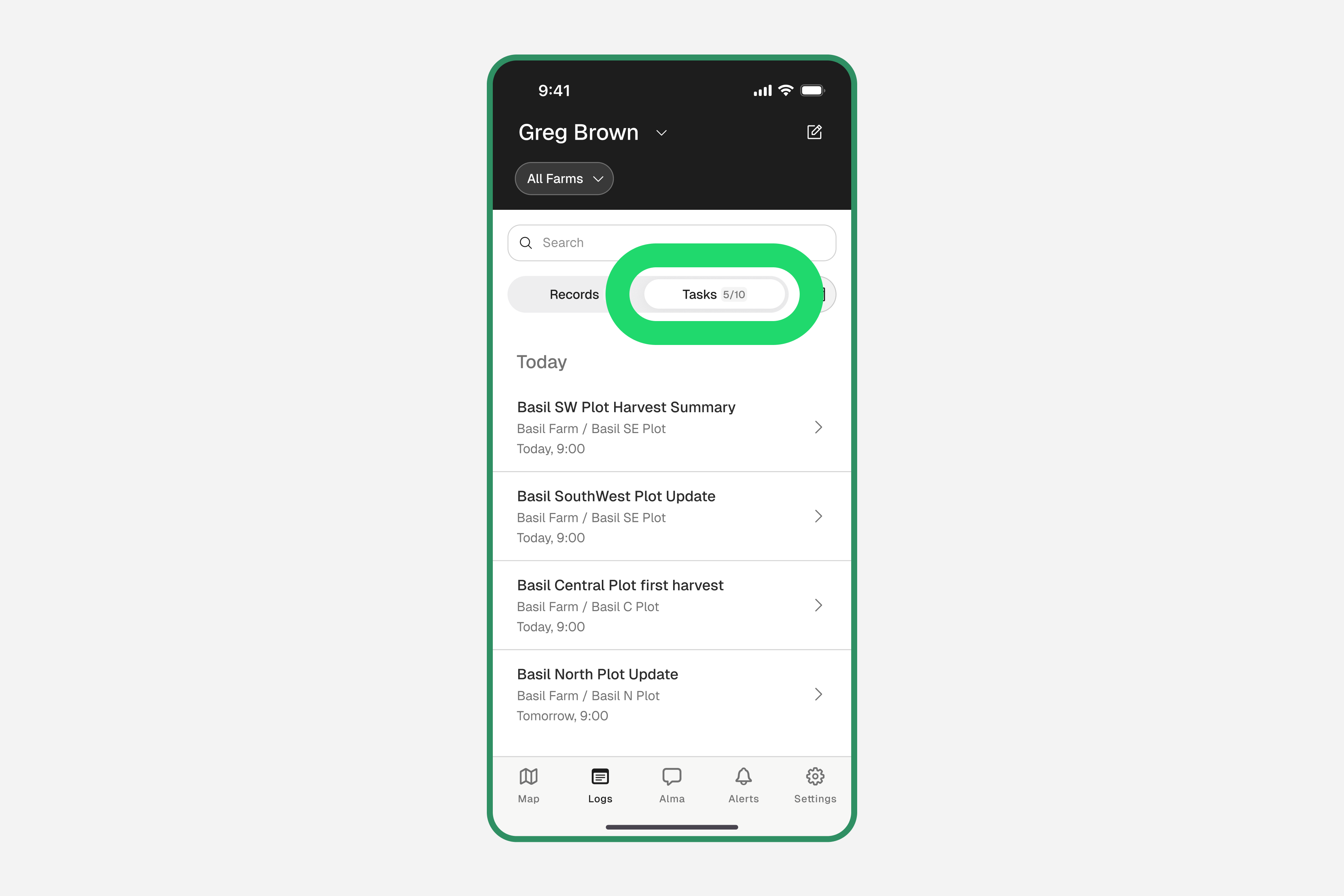
Open the task
Tap the Logs tab, then tap the Tasks button to switch to the task list. Tap on any task to open it.
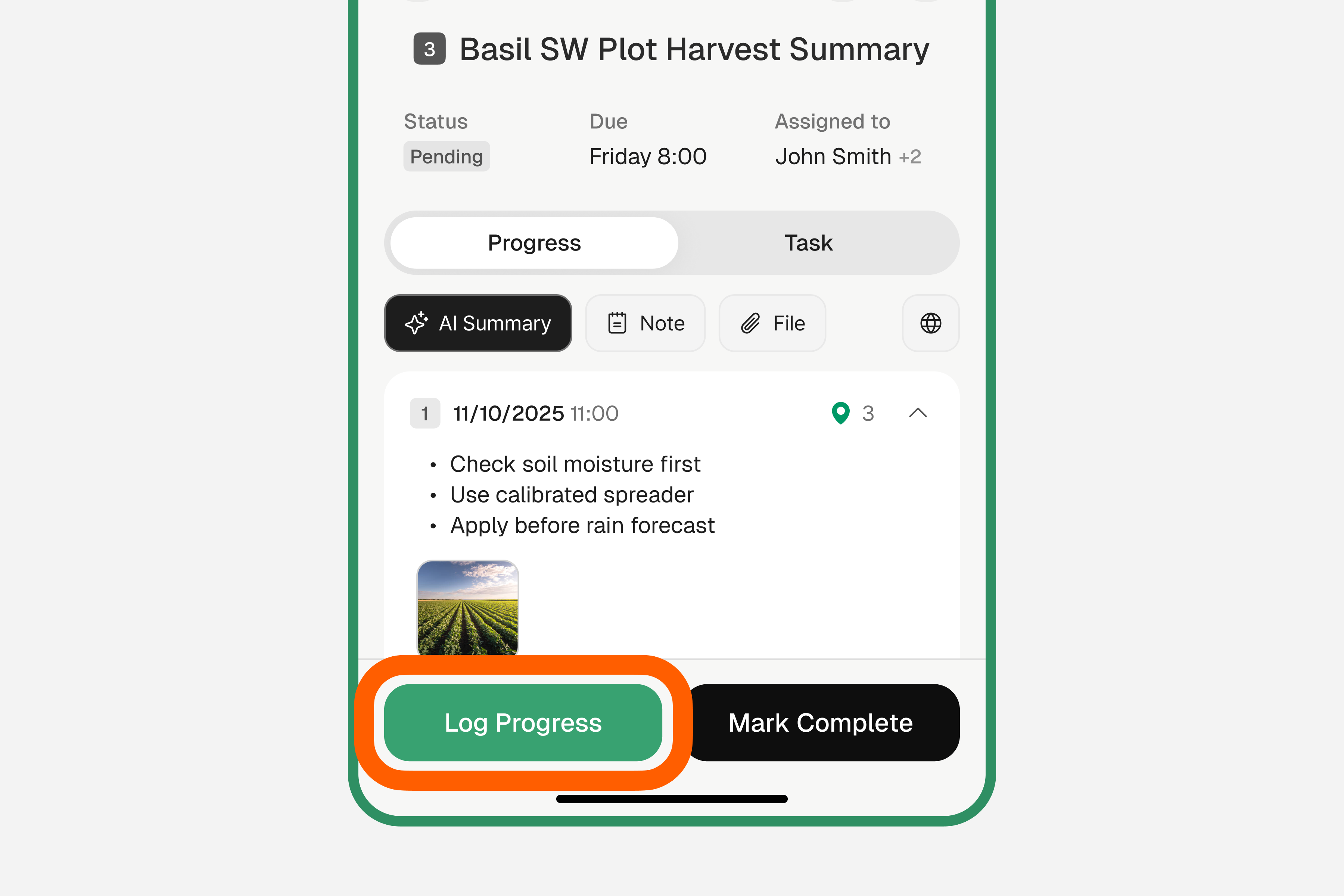
Log progress
Tap "Log Progress" to add an update — you can use voice or text to describe what has been done so far.
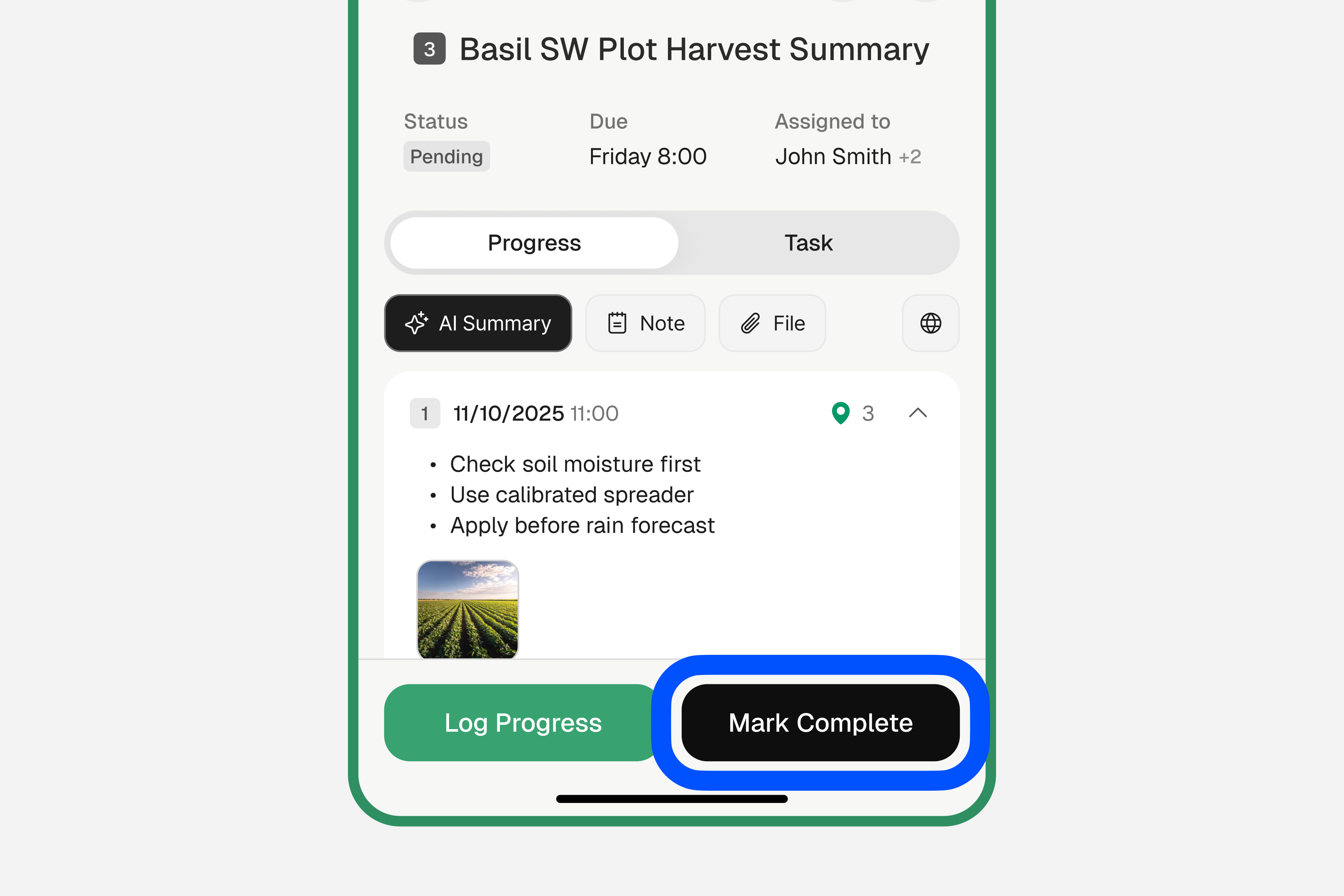
Mark complete when done
When the task is fully finished, tap "Mark Complete". The task moves to your completed records.
Assigning Tasks to Team Members
If you have team members, you can assign tasks directly to them.
Open the task's edit screen
Create a new task, or open an existing one and tap the edit button to enter edit mode.
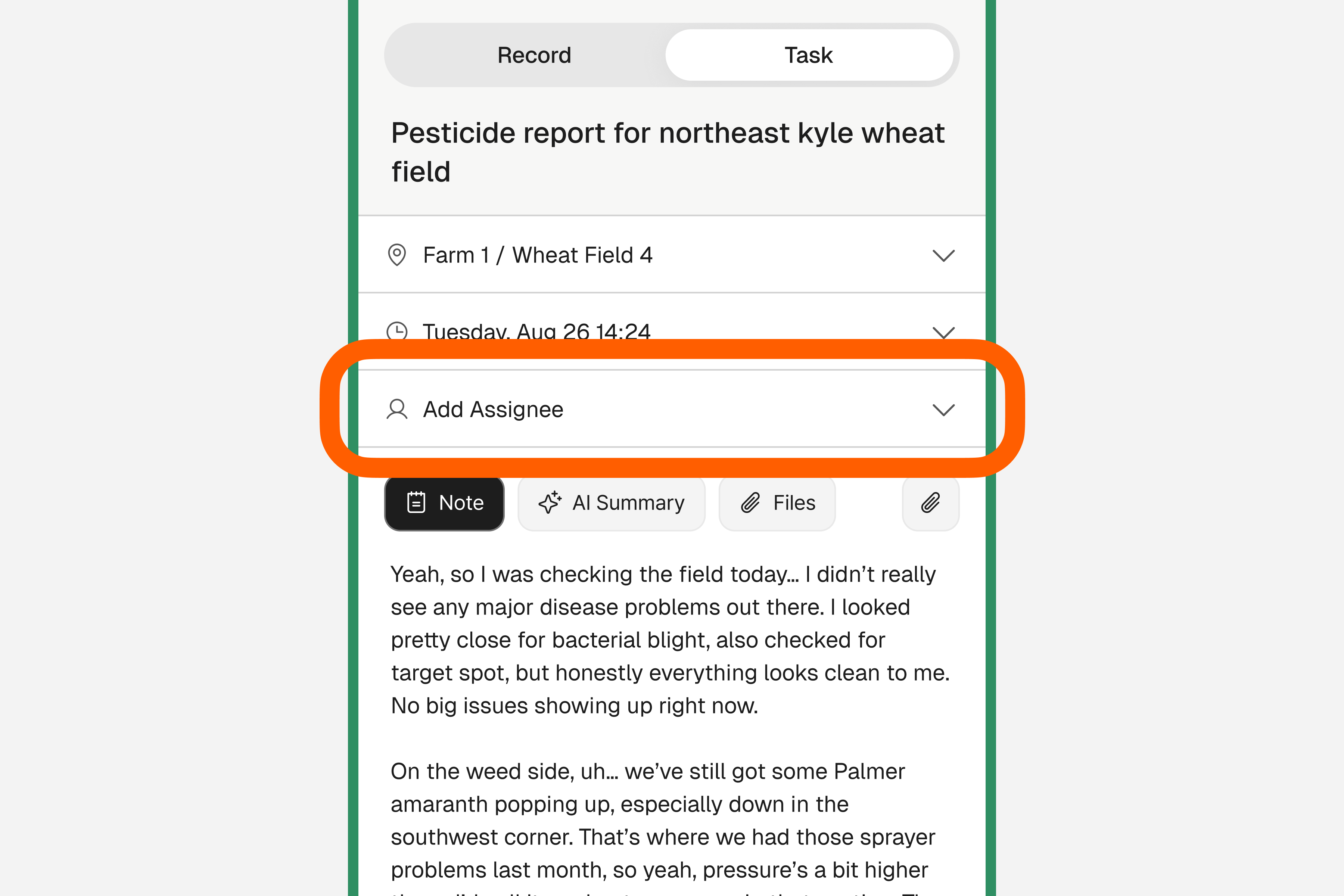
Tap the Assignee field
If no assignee has been set, tap "Add Assignee". If one is already assigned, tap the assignee field to change it.
Select a team member
Choose from the list of invited team members.
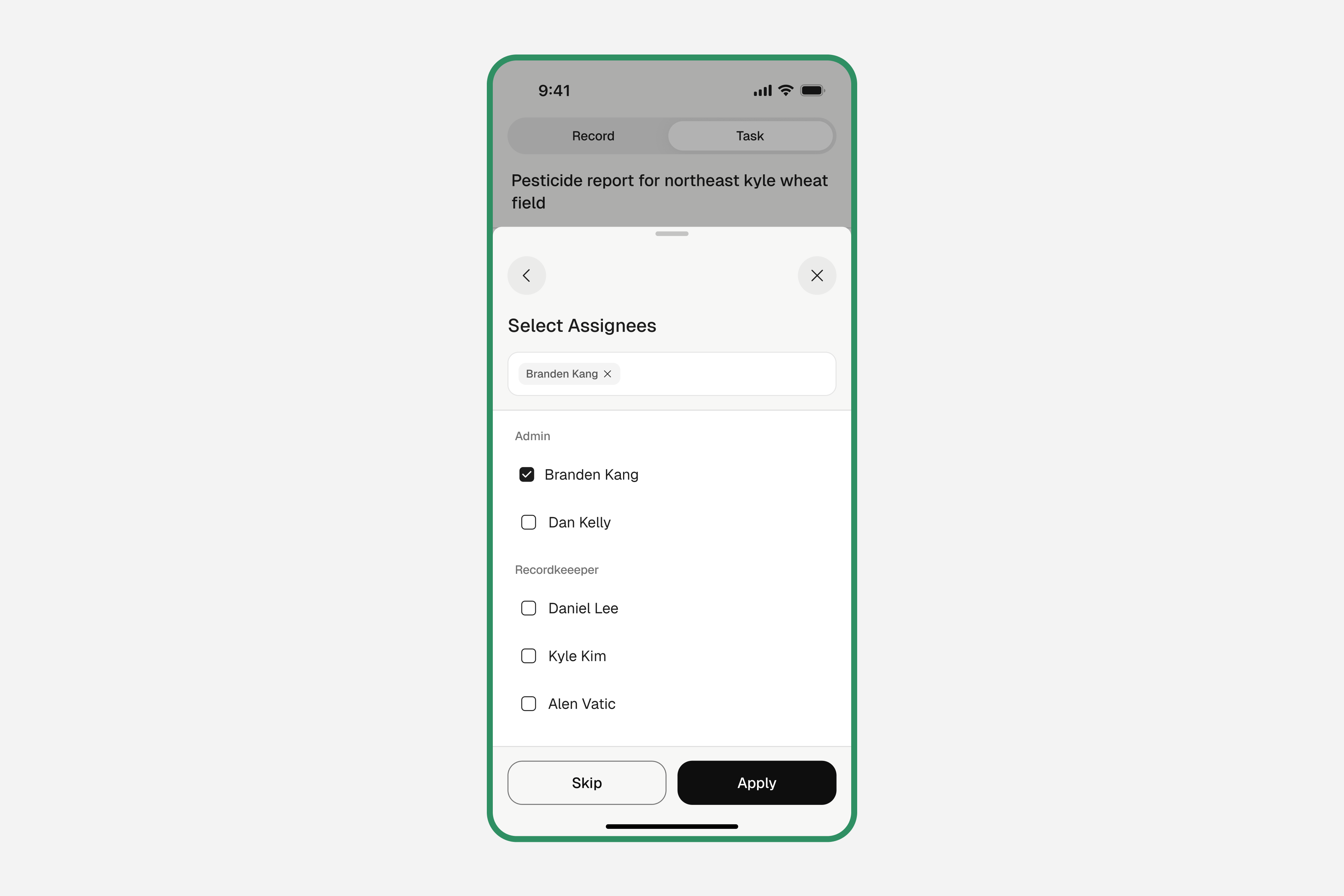
Save
The assigned team member will receive a notification about the task.
Only team members with the Recordkeeper role or higher can be assigned tasks.